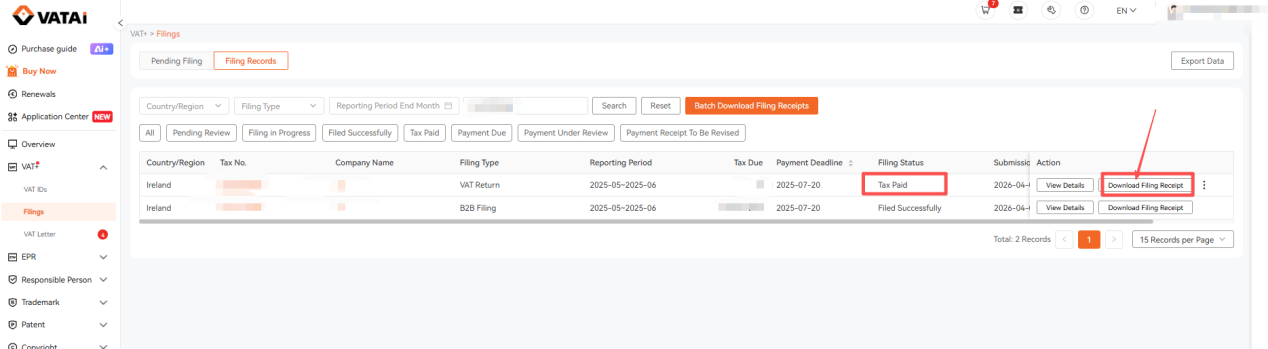
1. Log in to the VATAi system, navigate to [VAT+] > [Filings] > [Pending Filing], and select Ireland as the country. Enter the company name or VAT number you wish to file for in the search box. Choose the filing type: VAT Filing or VAT+B2B Filing, then click [File Now].
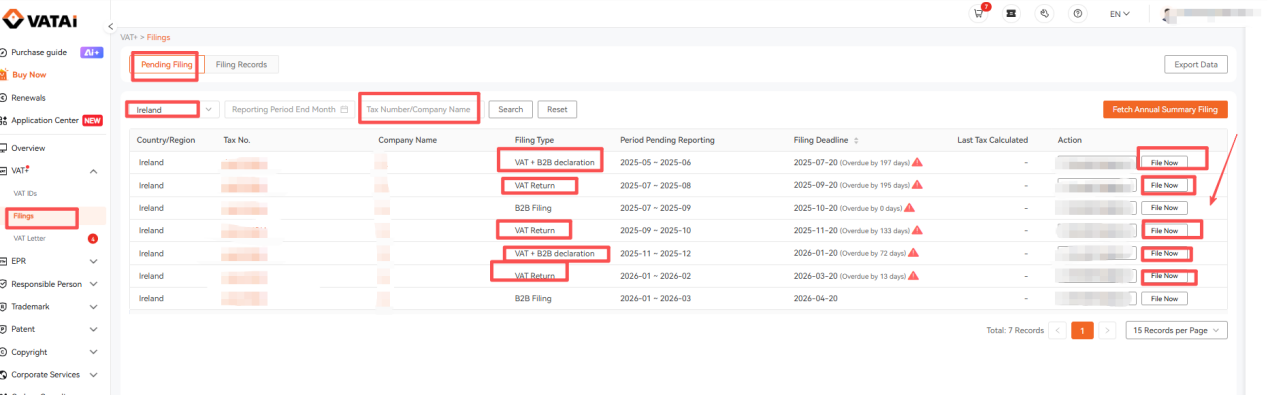
2. In the [Confirm Current Filing Information] pop-up window, click [Continue Filing] to enter the tax calculation page.
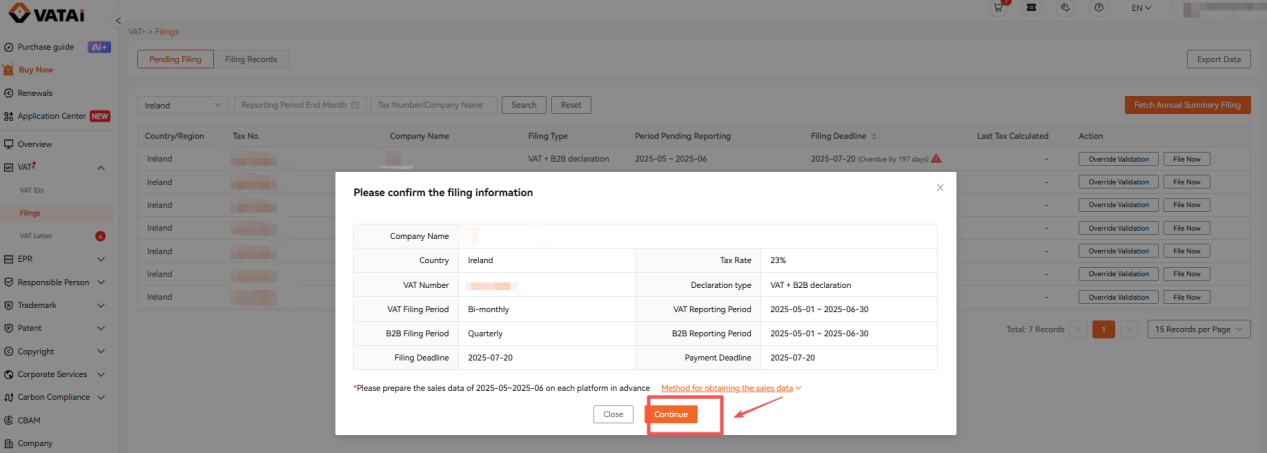
3. On the tax calculation page, under [Confirm Filing Information], verify that your filing details are correct, then click [Next].
4. On the tax calculation page, under [Upload Sales Data], upload your sales data:
① If there were no business operations during the current filing period, click [No Sales Data], upload a proof of no sales, and click Confirm.
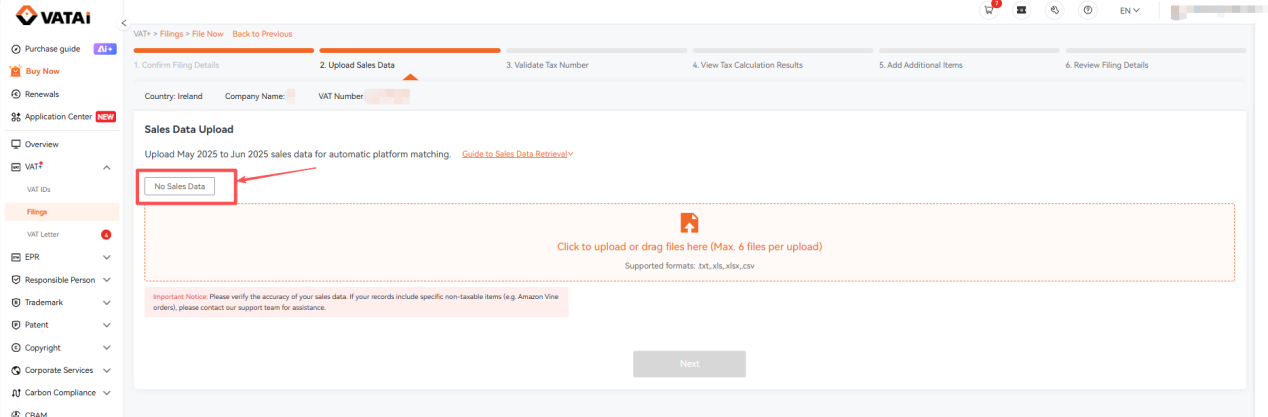
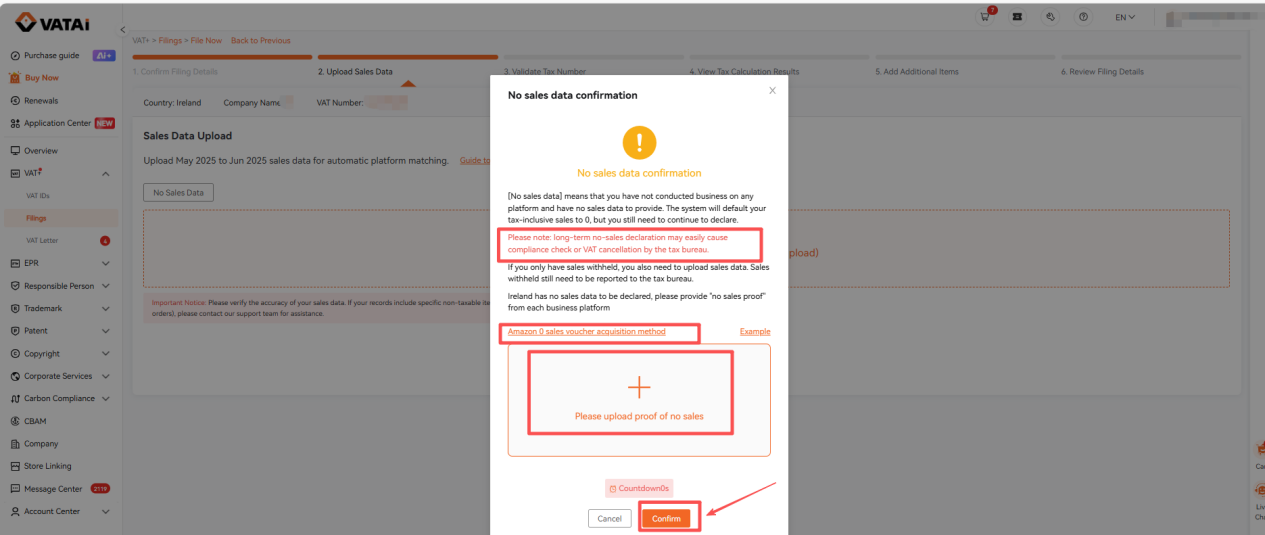
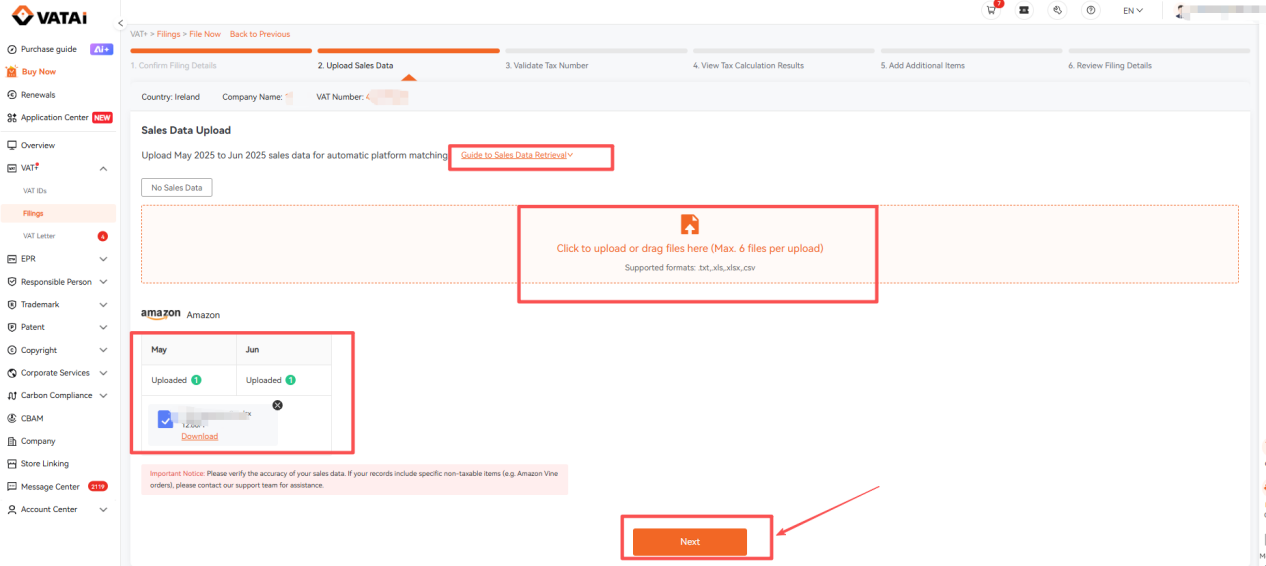
② If your sales platform is Amazon, you can click to view the instructions on how to obtain Amazon sales data. Download the sales report for the corresponding filing period, upload it into the data box, and click [Next].
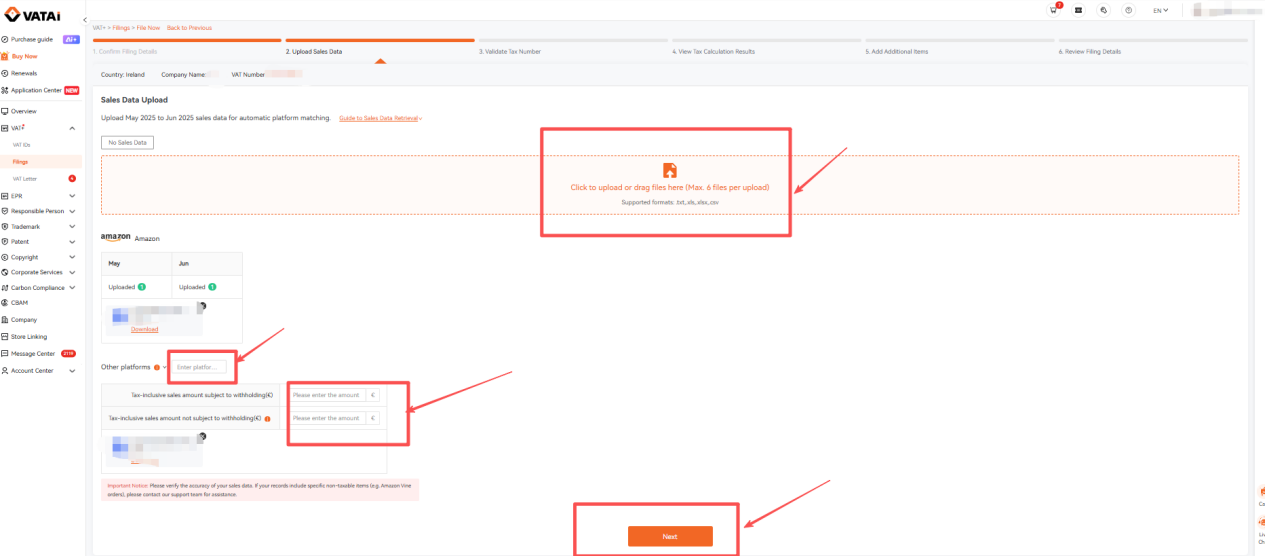
③ If your sales platform is not Amazon, upload the sales data from other platforms into the data box. You will need to fill in the names of the other platforms, as well as the tax-inclusive sales amount withheld and the tax-inclusive sales amount not withheld by the respective platforms. Then, click [Next].
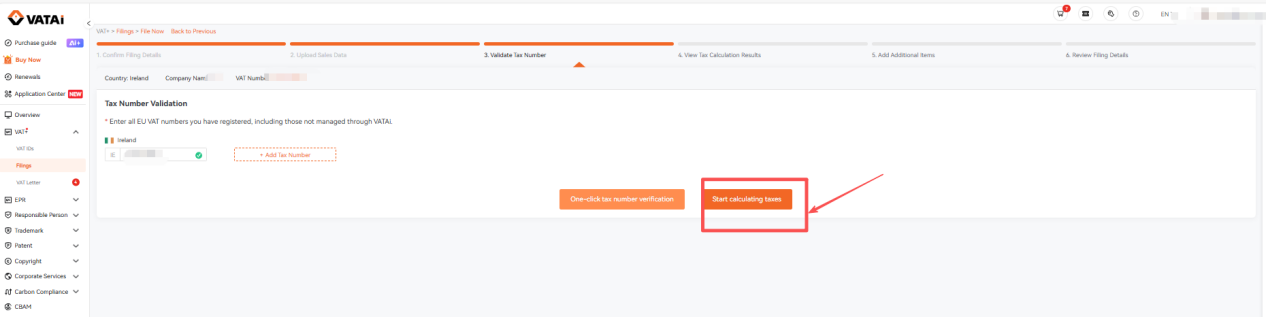
5. Under [Tax Number validation] page, the system will automatically import your Irish VAT number and other EU VAT numbers registered in the VATAi system. You can also manually add EU VAT numbers filed on other platforms. Then, click [One-Click Verify VAT Numbers] > [Start Tax Calculation].
Note: Please fill in all EU VAT numbers (including those not managed by VATAi), otherwise it may affect the final tax calculation result.
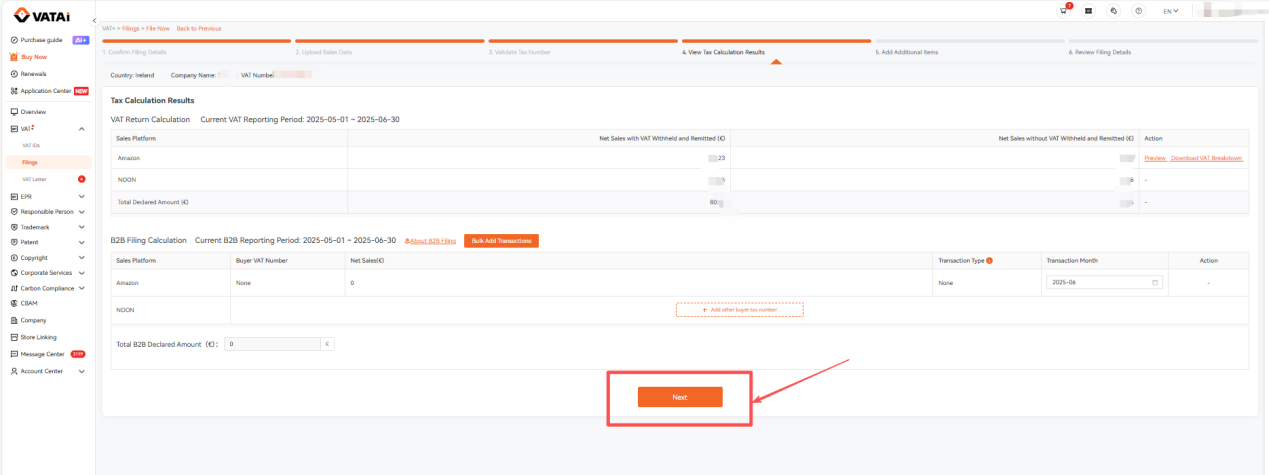
6. Review the tax calculation results. If there are no issues, click [Next].
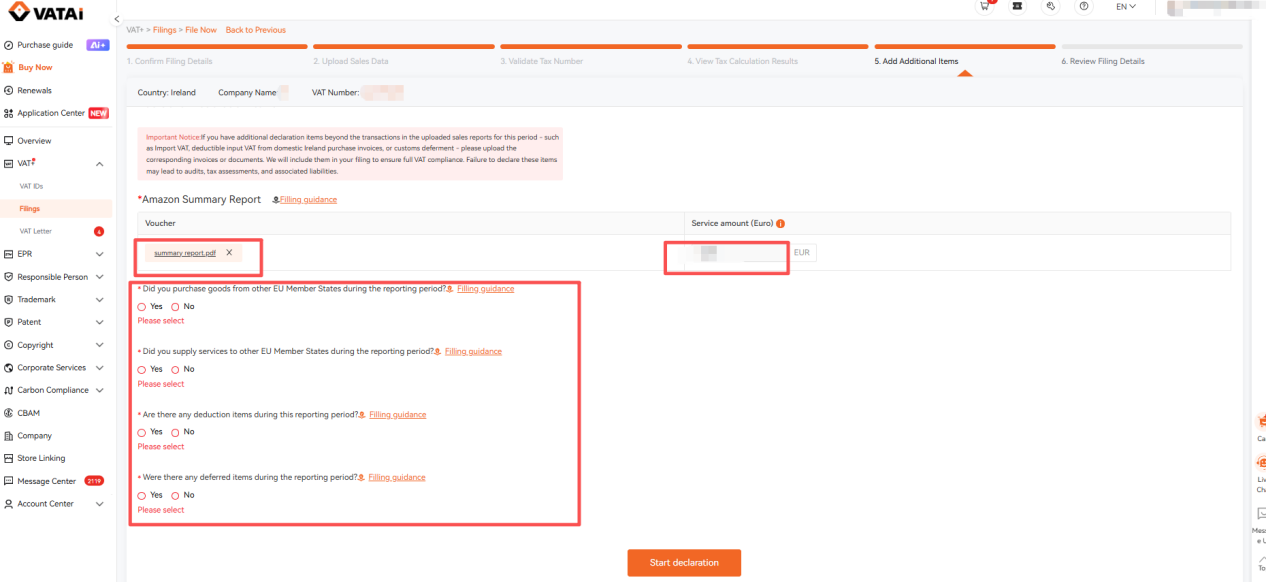
7. Under [Add Additional Items] page, please refer to the filling guide to upload the Amazon summary report. The system will automatically identify the corresponding service amount. This amount is for reporting purposes only and does not require tax payment. (Note: Even for a zero filing, you must upload the Amazon summary report; non-Amazon platforms do not need to upload this).
If you have various vouchers belonging to the current filing period (such as vouchers for purchasing goods from other EU countries, vouchers for services sold to other EU countries, deduction vouchers, invoice documents, deferred documents, etc.), you can upload the files to the corresponding items and fill in the specific amounts. Then, click [Start Declaration].
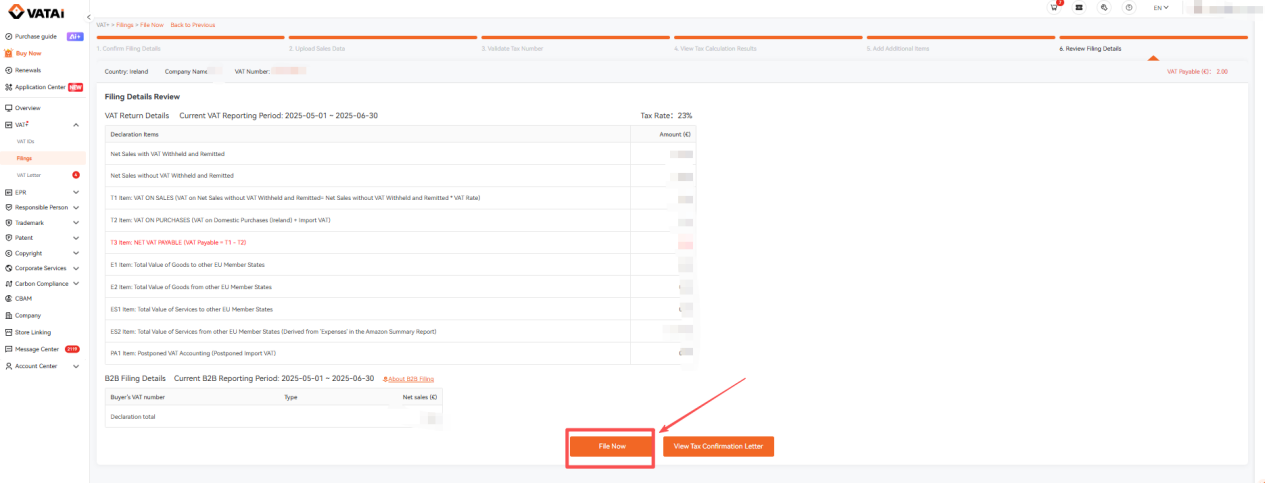
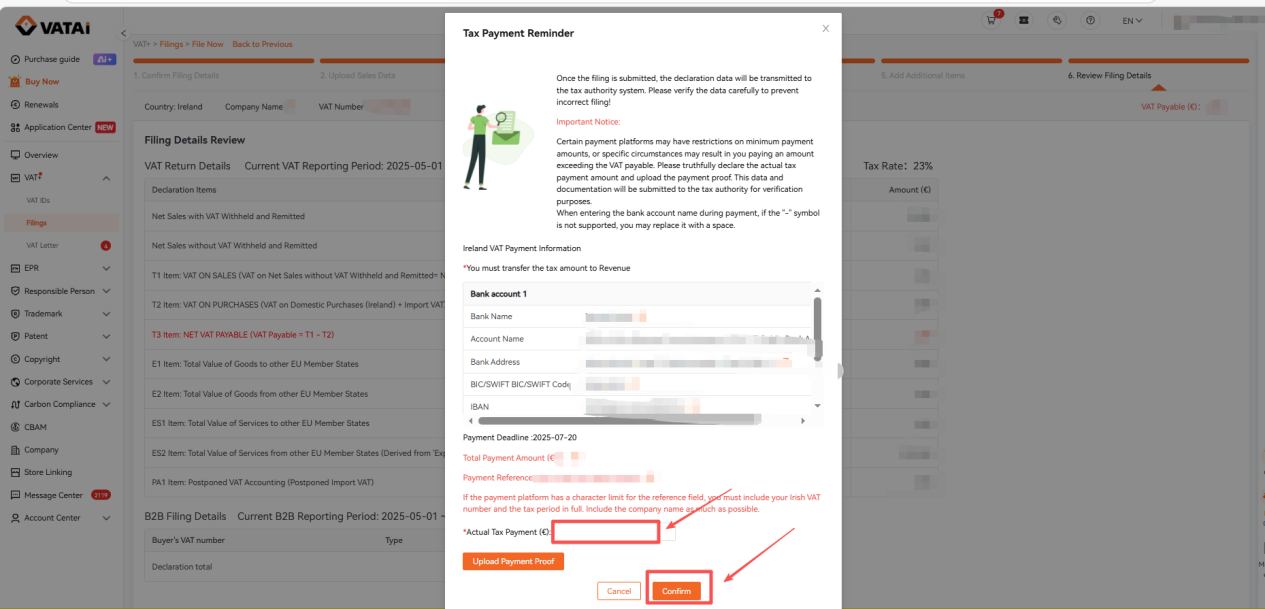
8. Review the filing details and the tax confirmation letter. If everything is correct, please submit the filing. For Ireland, tax payment precedes filing. After clicking "File Now", you need to pay the tax, upload the tax payment voucher, and fill in the actual tax paid.
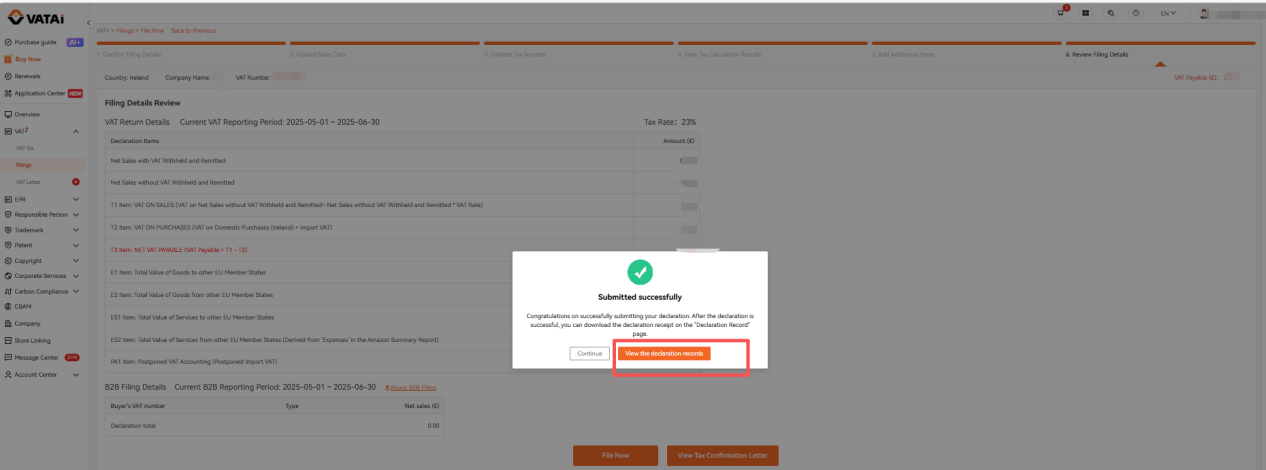
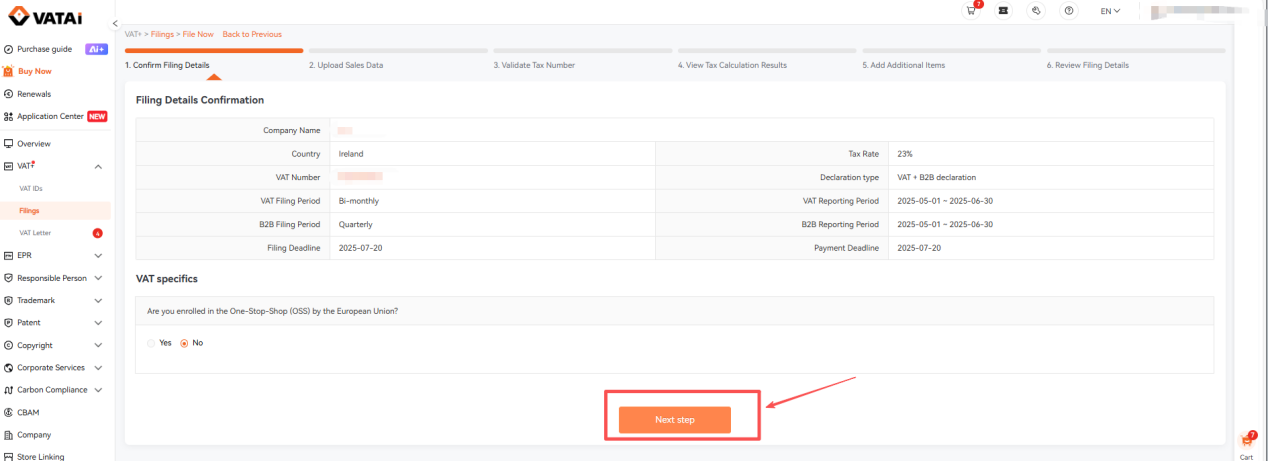
9. Once your filing is completed with the tax authority, we will upload the receipt. The status of your filing record will be updated to "Tax Paid". You can click to download the filing receipt on the filing records page.