Guidelines for Submitting German B2B Filings (Zusammenfassende Meldung) via the VATAi System
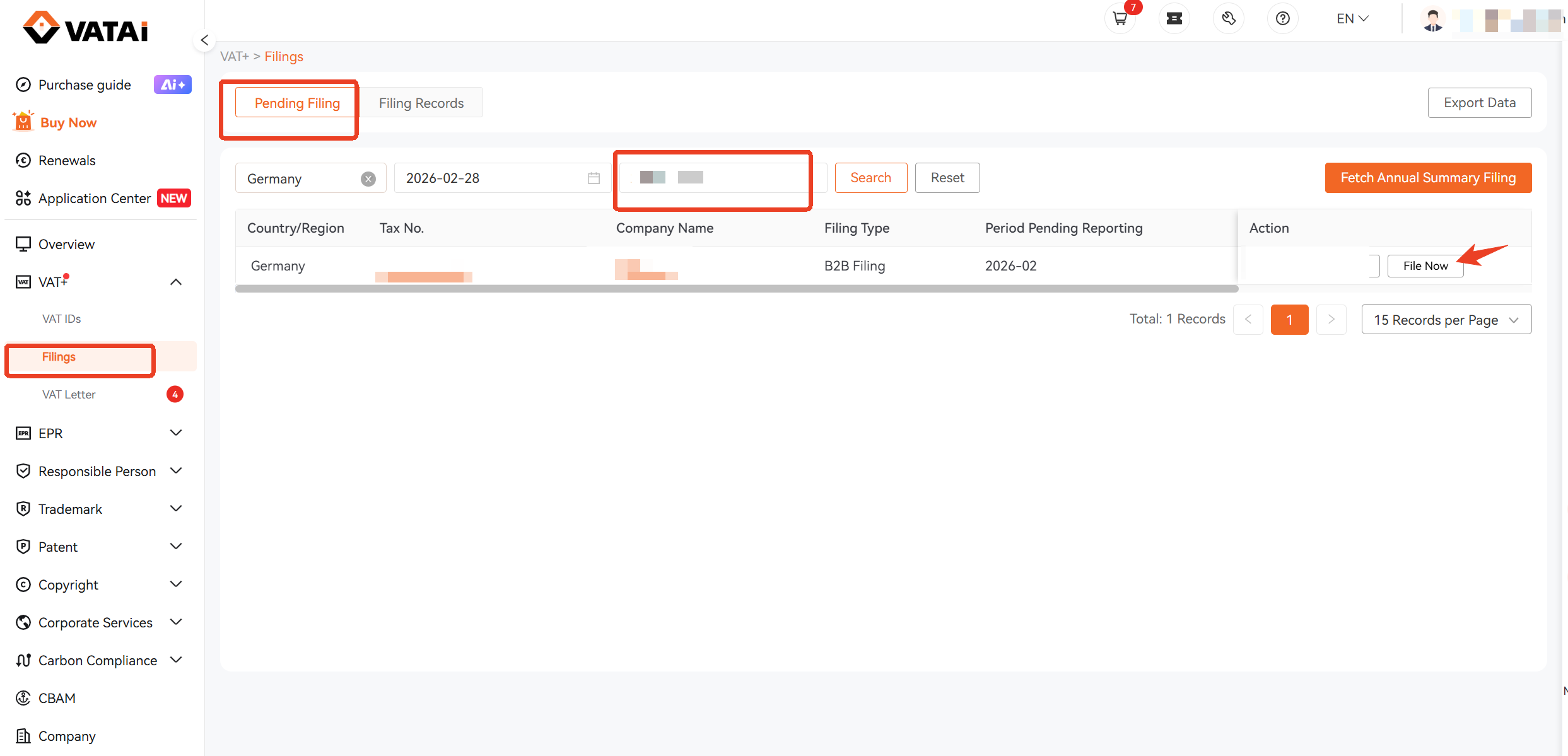
Step 1: Log in to the VATAi Client Portal, select [Filings]-[Pending Filing], enter the company name or tax ID of the entity you need to declare in the search box, and click [File Now].
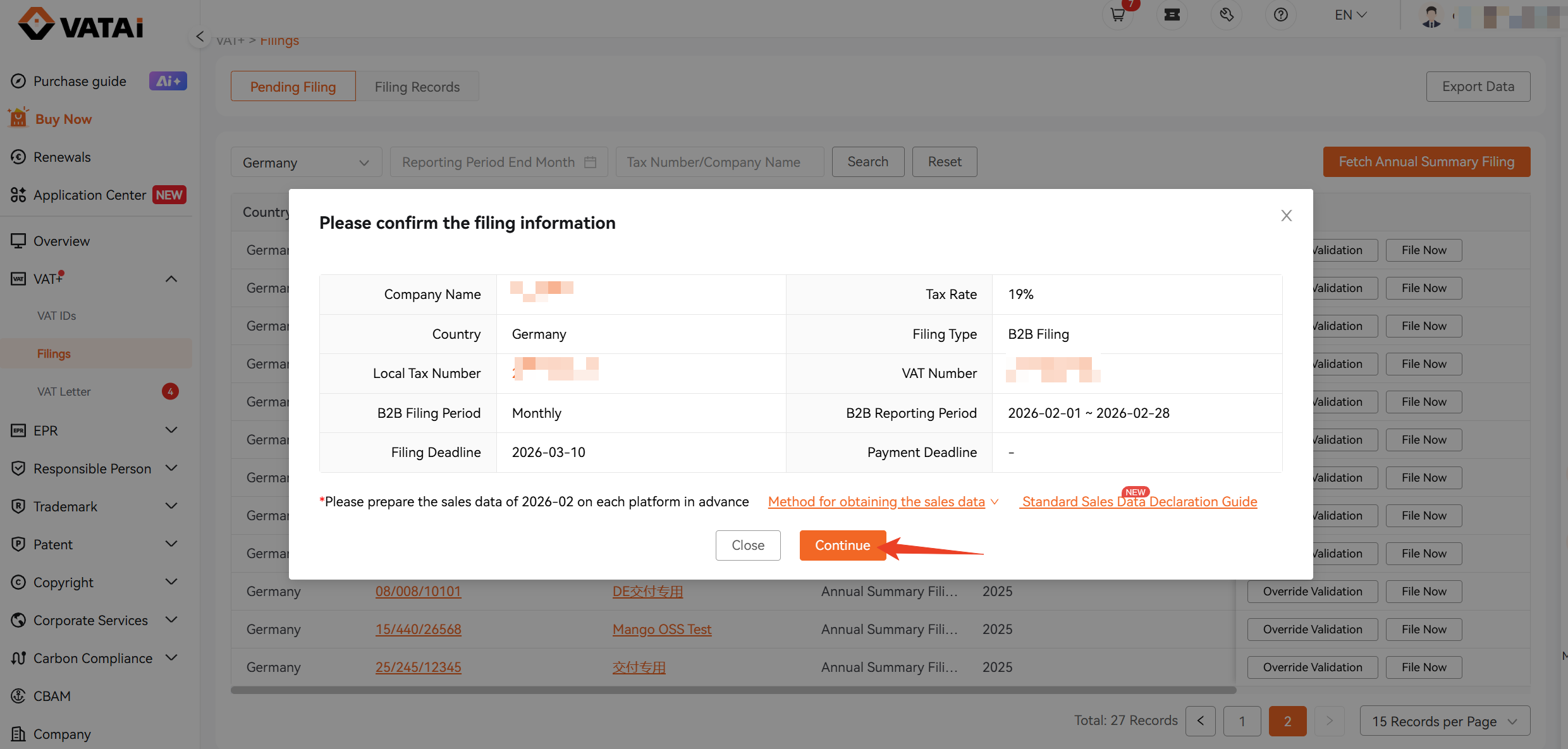
Step 2: In the pop‑up window [Please confirm the filing information], click [Continue] to access the tax calculation page.
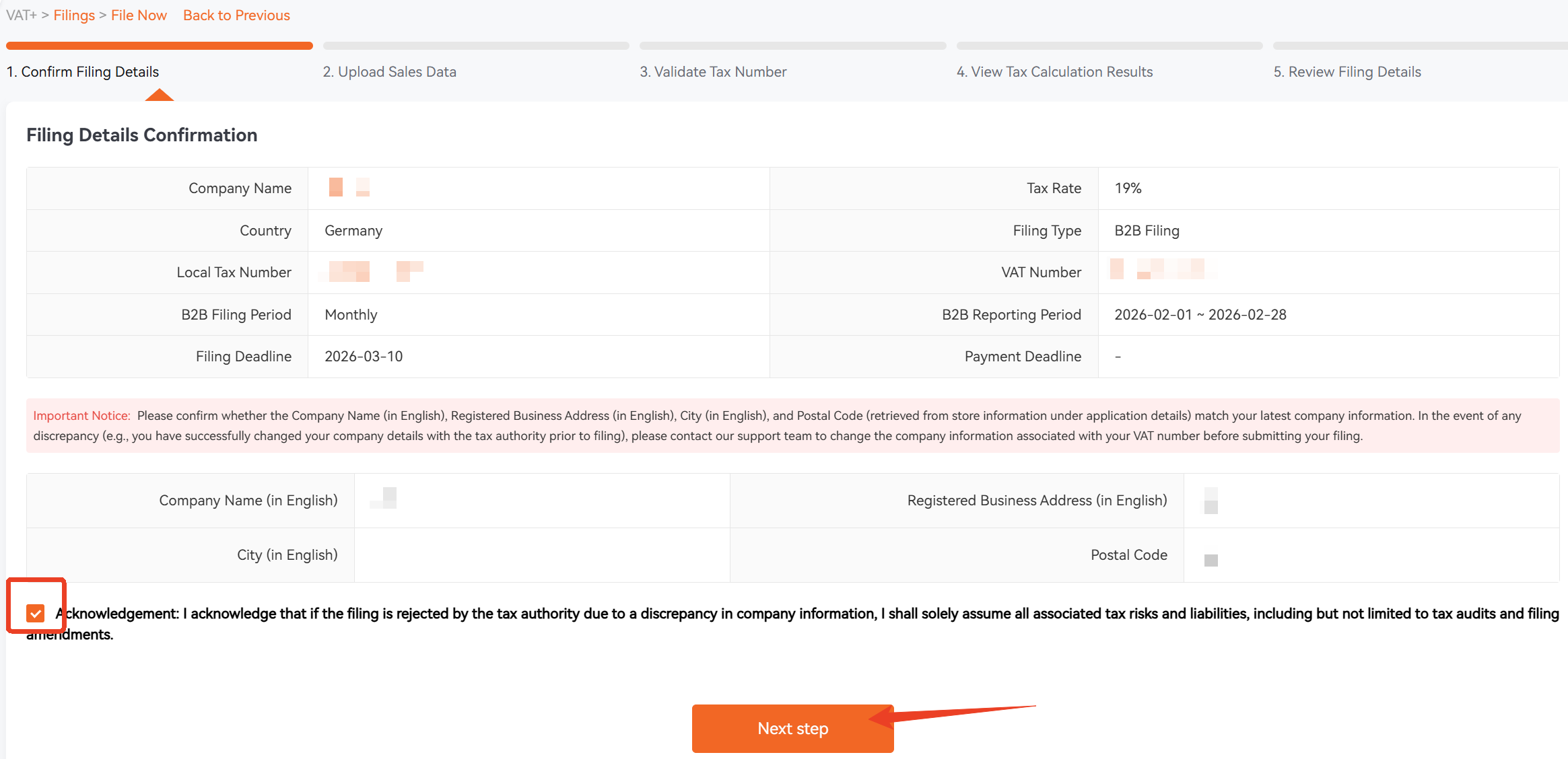
Step 3: On the tax calculation page under [Confirm Filing Details], verify that your declaration details, company name, address and VAT‑related information are correct, then click [Next Step]. Please contact customer service if the company address is incorrect.
Step 4: Upload sales data under [Upload Sales Data] on the tax calculation page, the system will automatically identify sales platforms. Click [No Sales Data] if no business activities were conducted for the current declaration period.
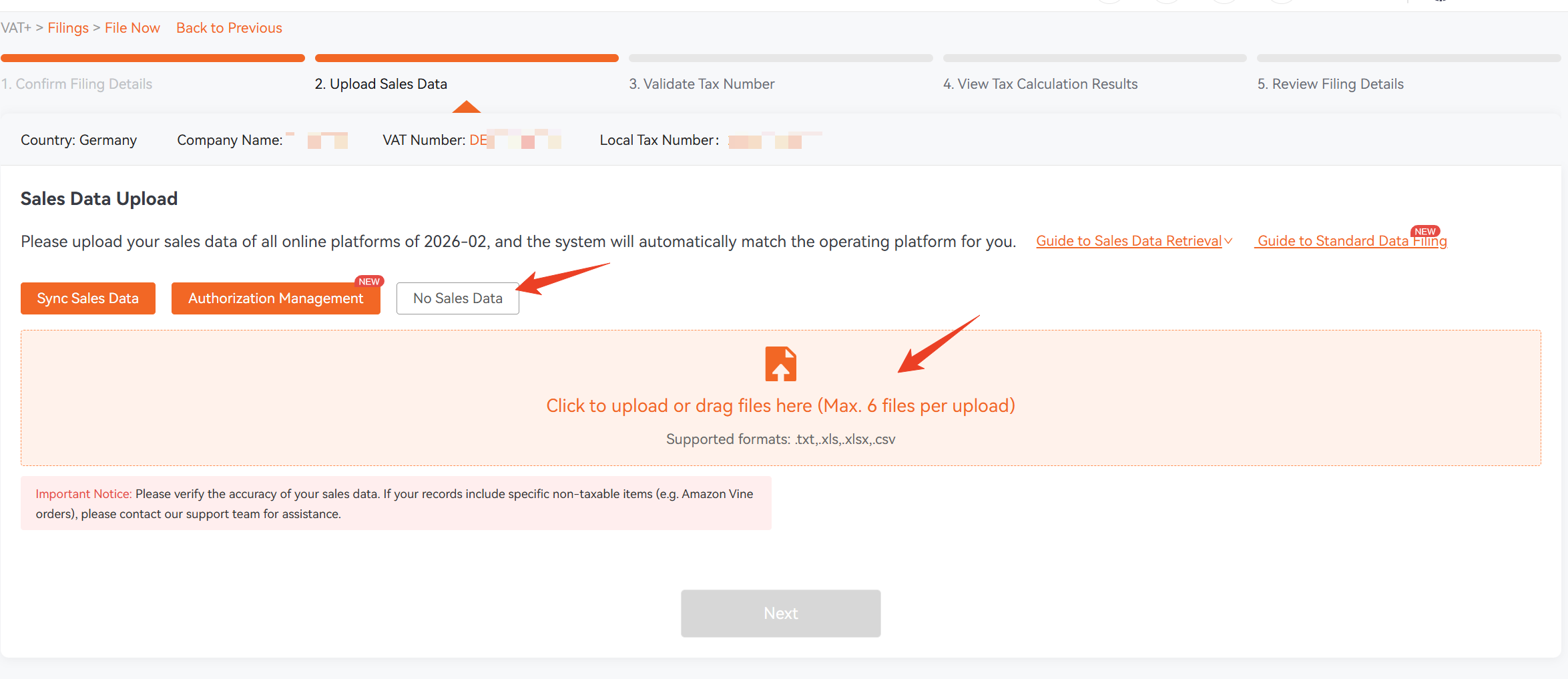
If you authorize our system to automatically retrieve your raw data from sales platforms, click [Authorization Management]. Upon successful authorization, click [Sync Sales Data], and the system will automatically pull your platform sales data for the corresponding declaration period without manual upload. Hover your mouse over [Sync Sales Data] to view the platforms and countries supported for automatic sales data retrieval by the system.
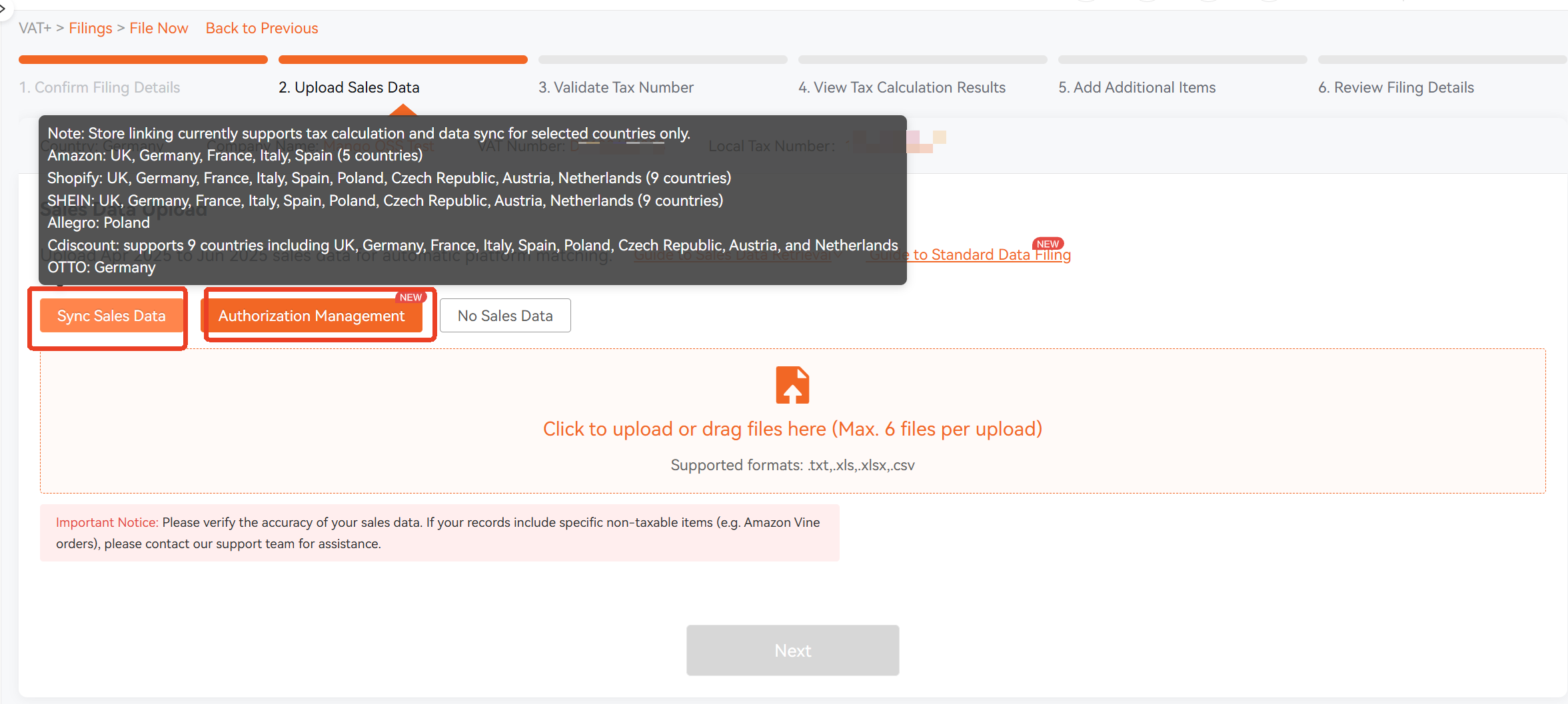
After successful upload of sales data, the data identification result by the system is shown in the figure below:
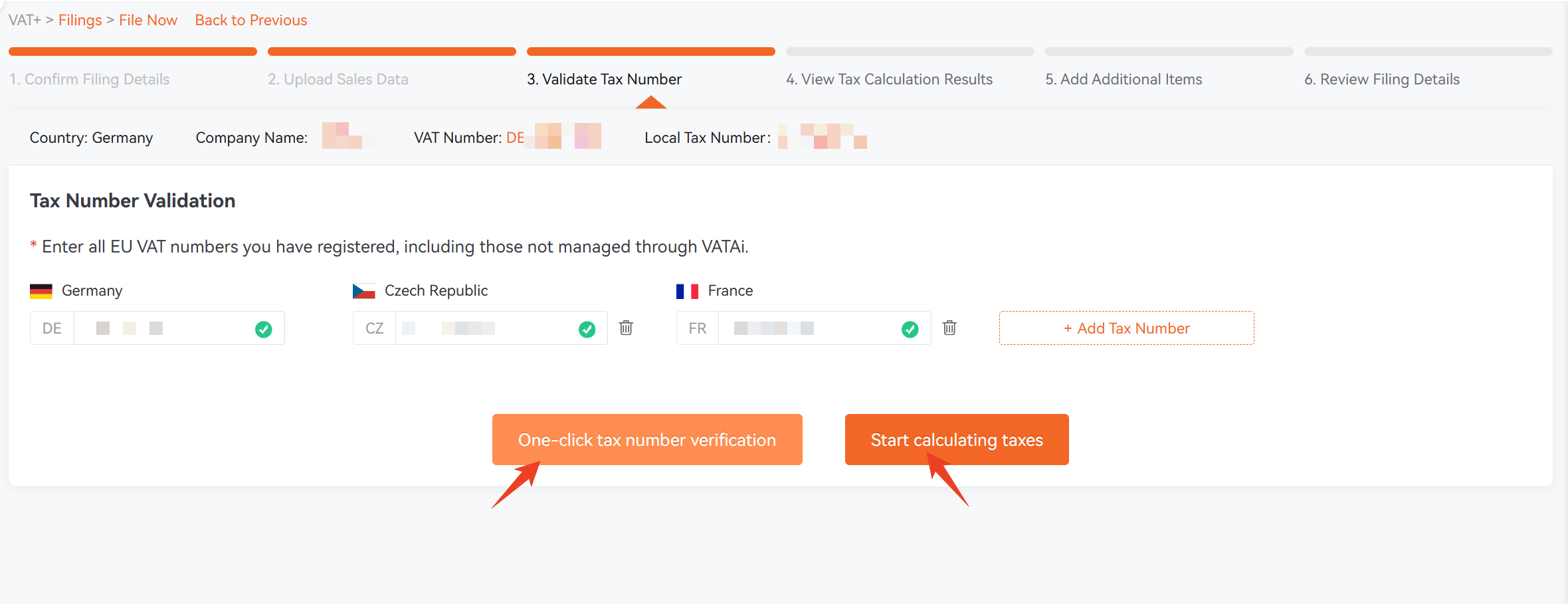
Currently, for manually uploaded sales data, the system only supports identifying and calculating B2B transactions from Amazon, eBay and AliExpress. For B2B sales data generated from other platforms or offline businesses, please manually fill in the buyer VAT Numbers, Net Sales and Transaction Types under Step 4 [View Tax Calculation Results].
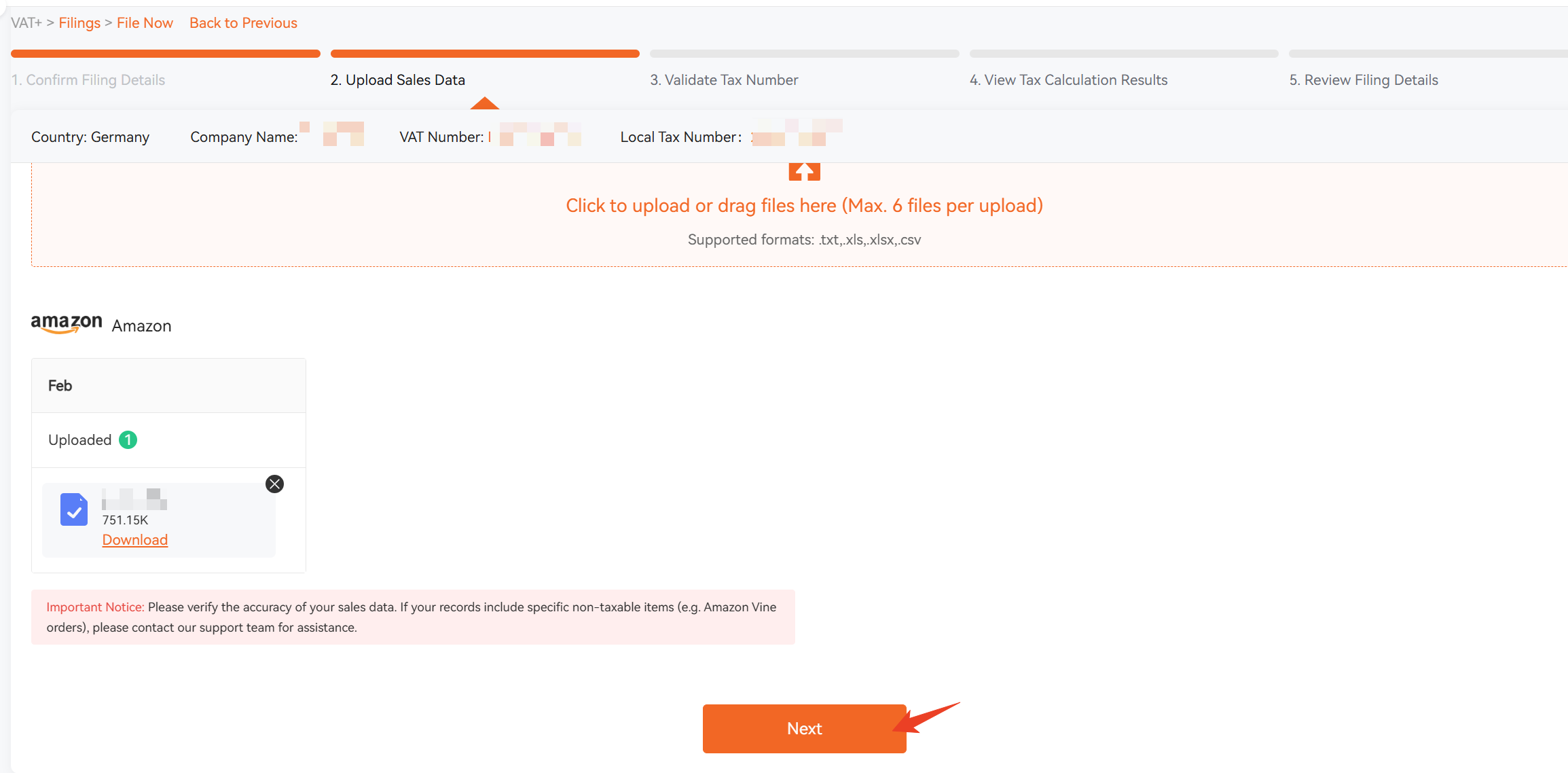
Step 5: On the [Validate Tax Number] page, the system will automatically populate all EU country tax IDs you have registered in our system. If you hold additional EU country tax IDs, please add them manually. Note that failure to enter all valid EU tax IDs may affect tax calculation results. After verification, click [One‑click tax number verification]. Upon completion of verification, click [Start calculating taxes].
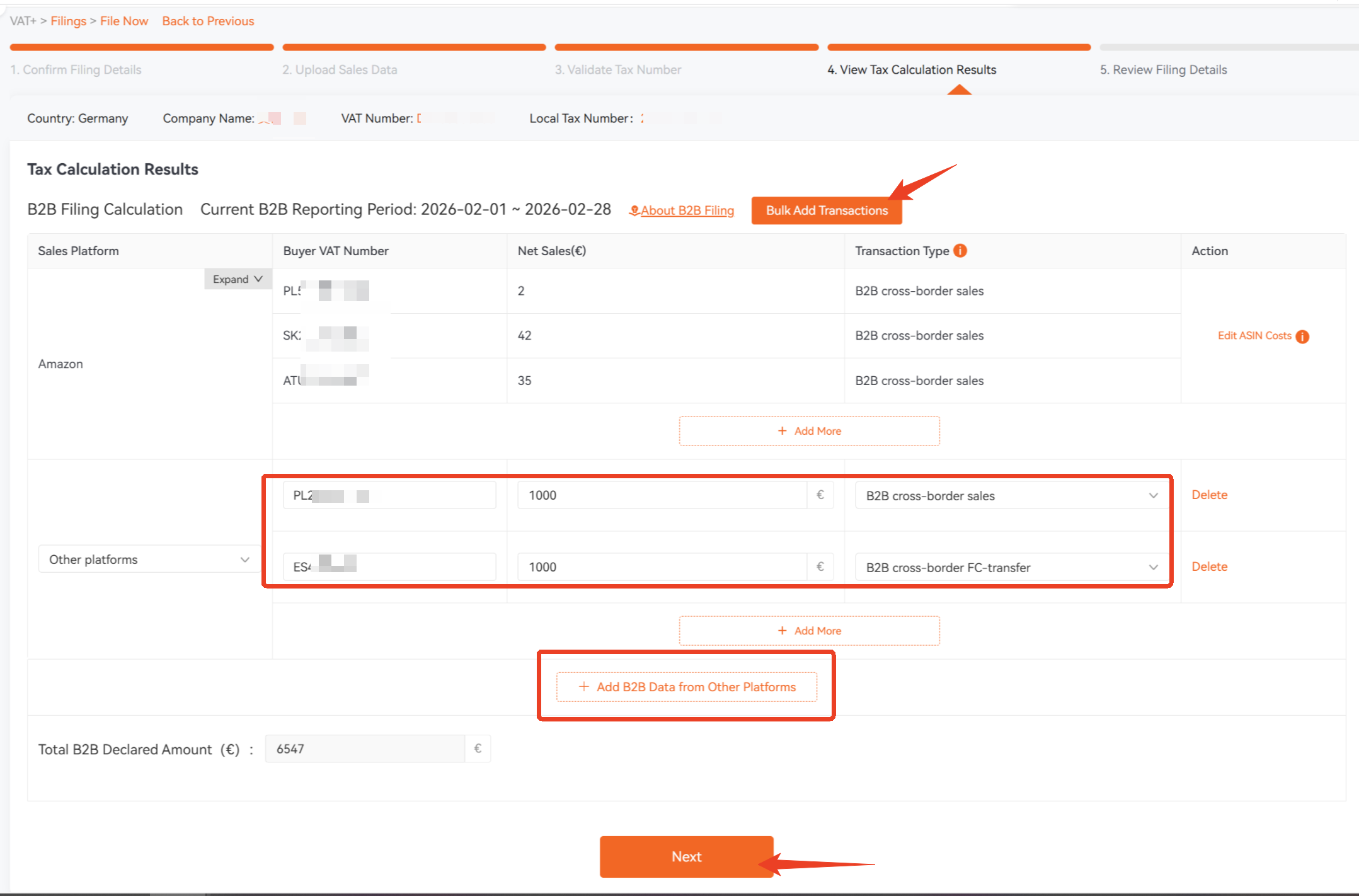
Step 6: On the [View Tax Calculation Results] page, you may view the B2B transaction details for the current period. If you have additional B2B transactions from Germany to other EU countries generated via other platforms or offline channels (including stock transfers), click [Add B2B Data from Other Platforms] to upload buyer VAT Numbers, Net Sales and Transaction Types separately. Alternatively, click [Bulk Add Transactions] to download the spreadsheet template, fill in all B2B transactions and upload the completed file. Click [Next] to proceed with the declaration once the upload is finished.
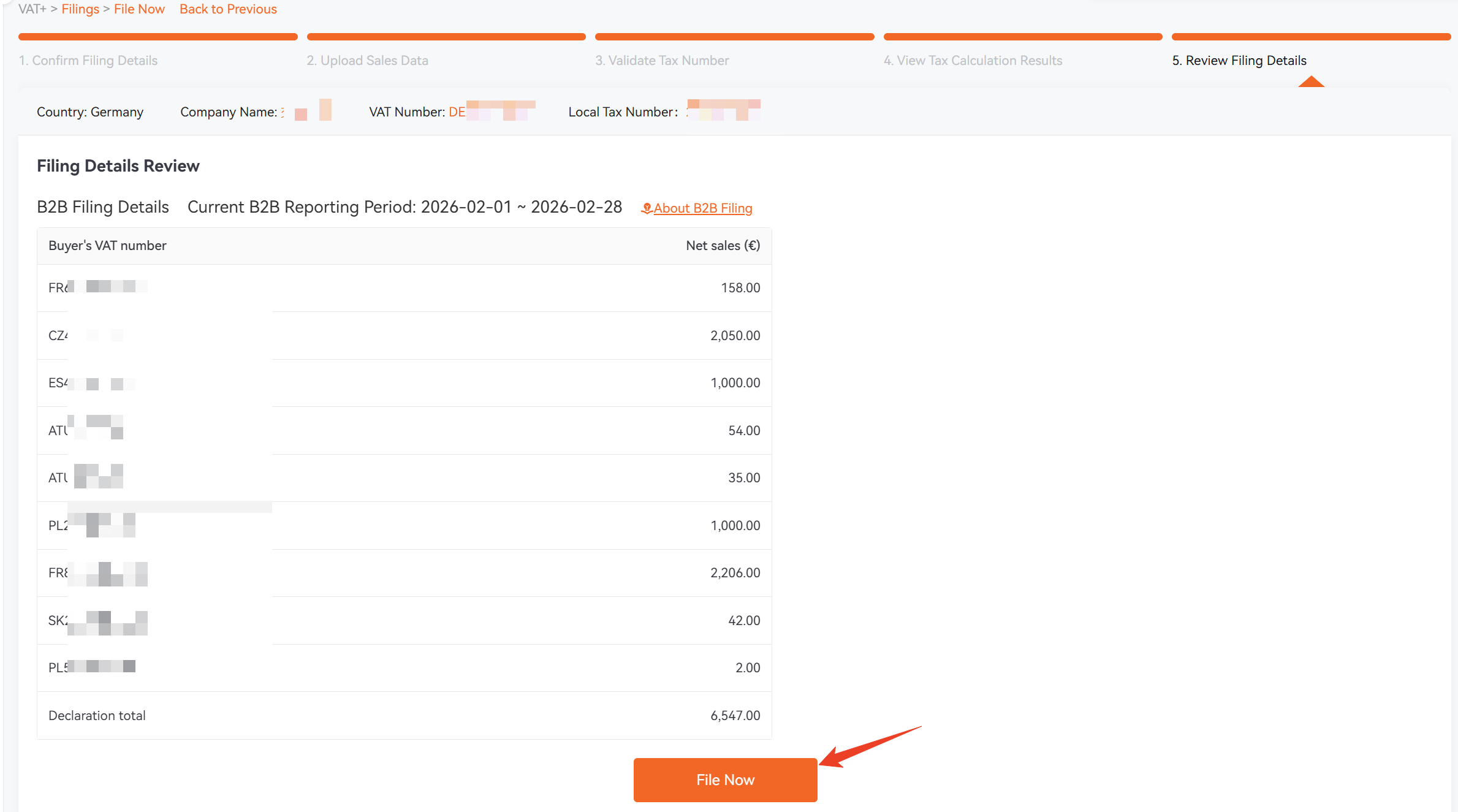
Step 7: On the [Review Filing Details] page, you can check the specific amounts of various transactions declared for the current period. After confirming the filing details are correct, click [File Now] to complete the filing.