This guide explains how to complete your French VAT filing using the VATAi system. Before starting, please ensure you have prepared your sales data, VAT numbers, and any supporting documents required for the filing.
Step 1: Start Filing
Log in to your VATAi account and navigate to the Filing section.
- Select the VAT number that needs to be declared.
- Click File Now.
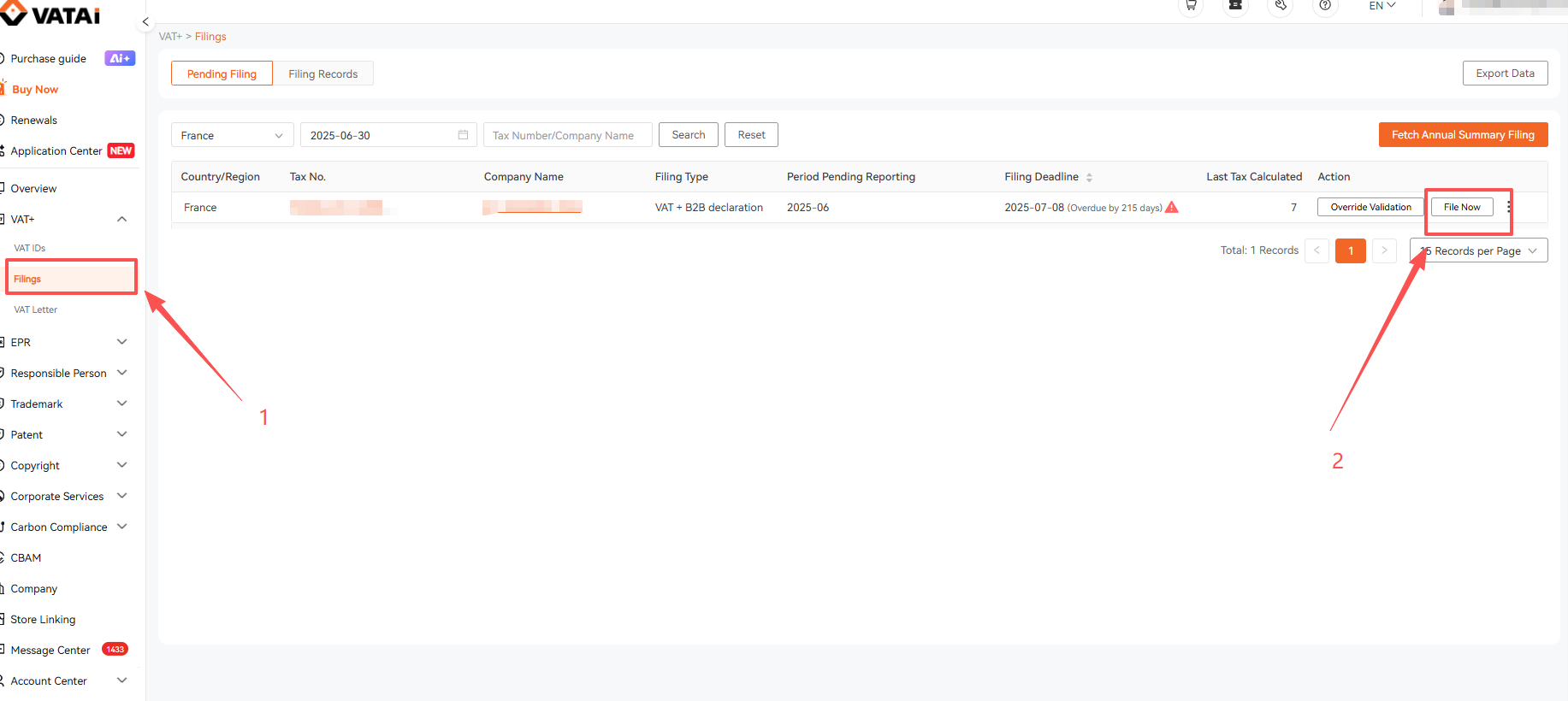
For the same VAT number, filing periods must be submitted in chronological order. You must complete the earlier filing period before submitting a later one.
Step 2: Confirm Filing Information
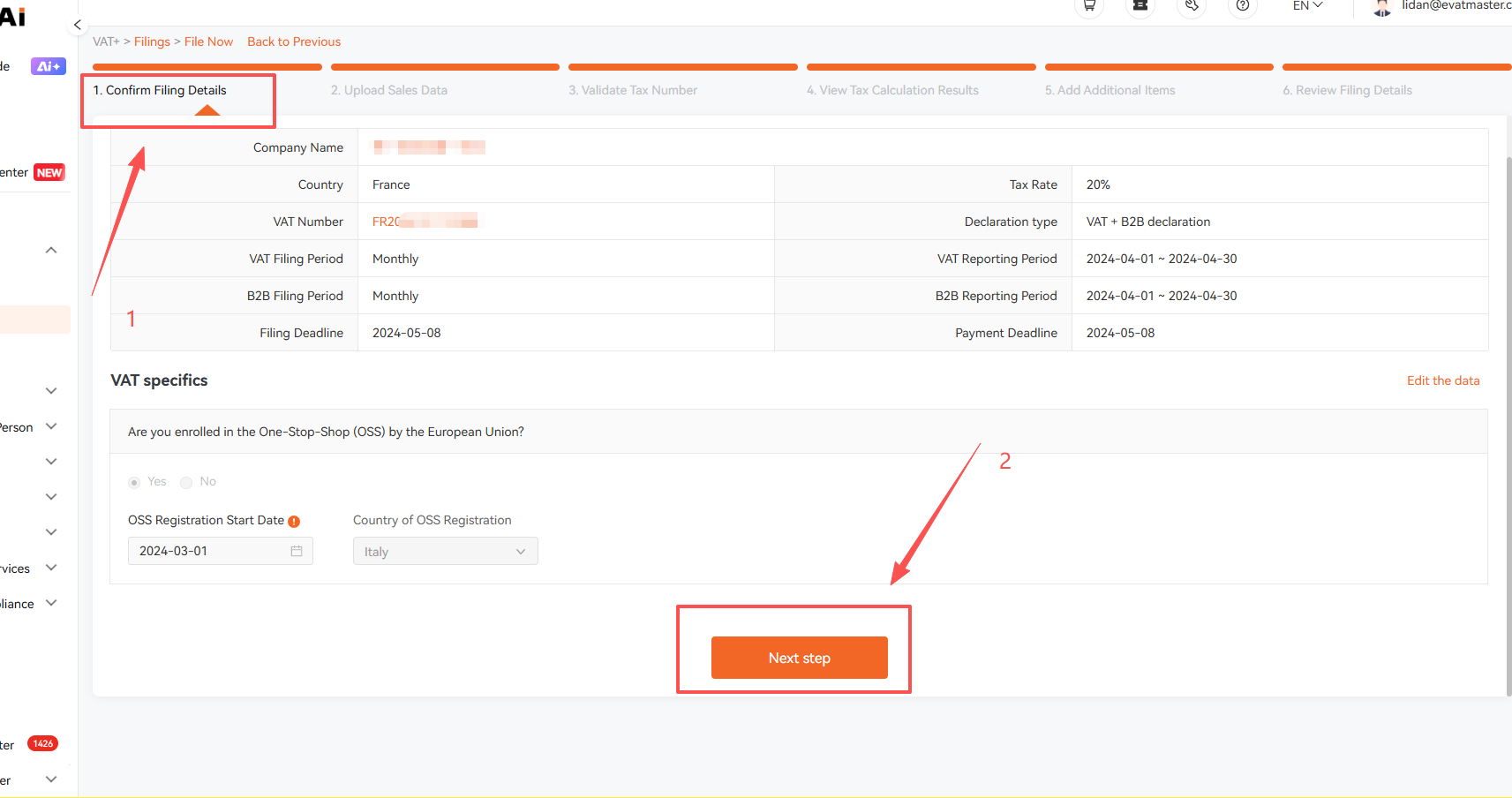
Verify the following information carefully:
- Company name
- VAT number
- Filing cycle
- Filing period
If the company has already registered for OSS filing, please ensure the OSS information is properly filled in.
If OSS is activated but not included in the VAT filing, it may result in overpayment of VAT. Once everything is confirmed, click Next Step.
Step 3: Upload Sales Data
You will enter the Upload Sales Data page.
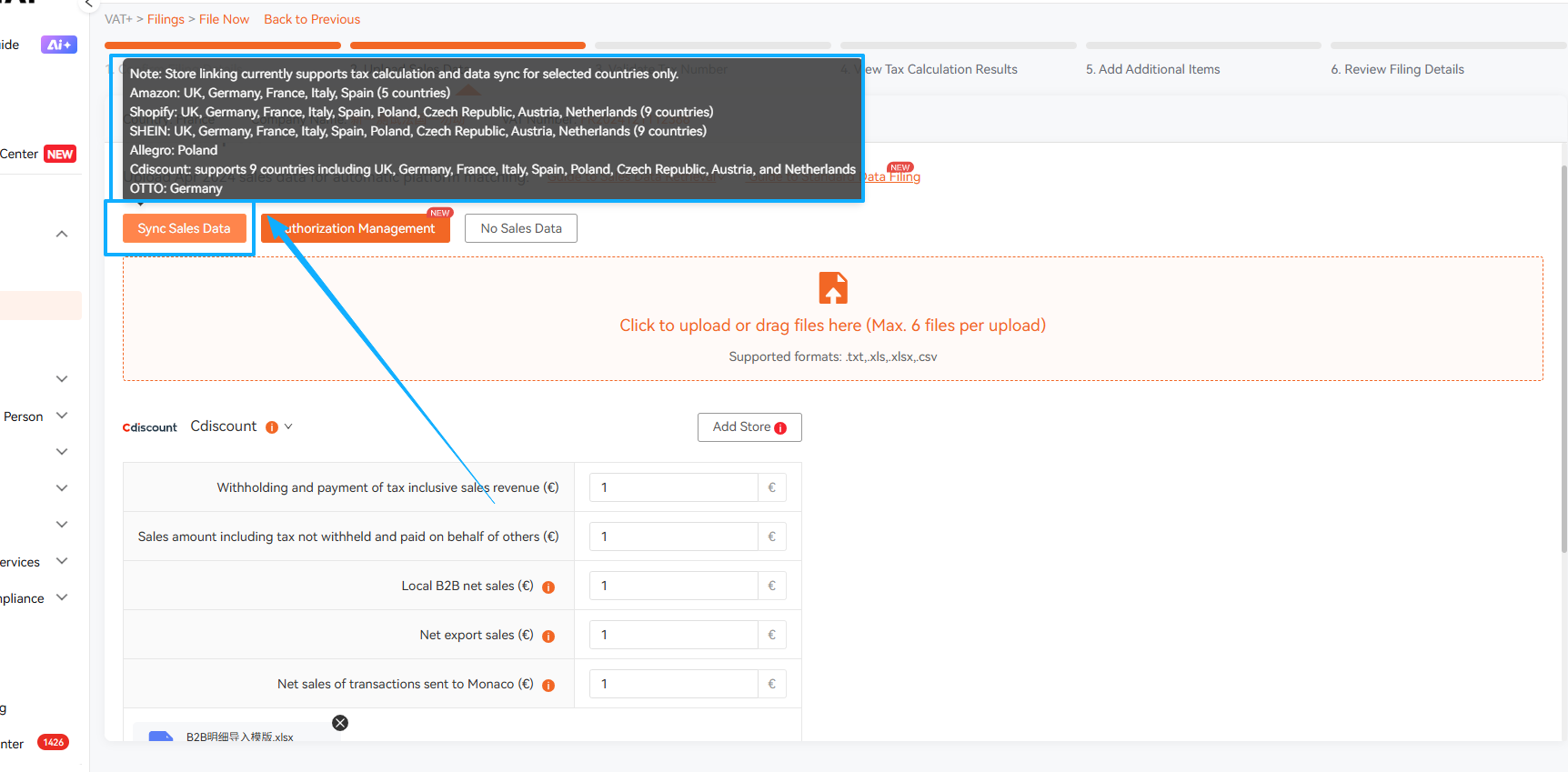
You can authorise your store to the VATAi system. Once authorisation is completed, VATAi will automatically retrieve sales data from your store during the filing process. For authorised stores, simply click Sync Sales Data to import your sales data.
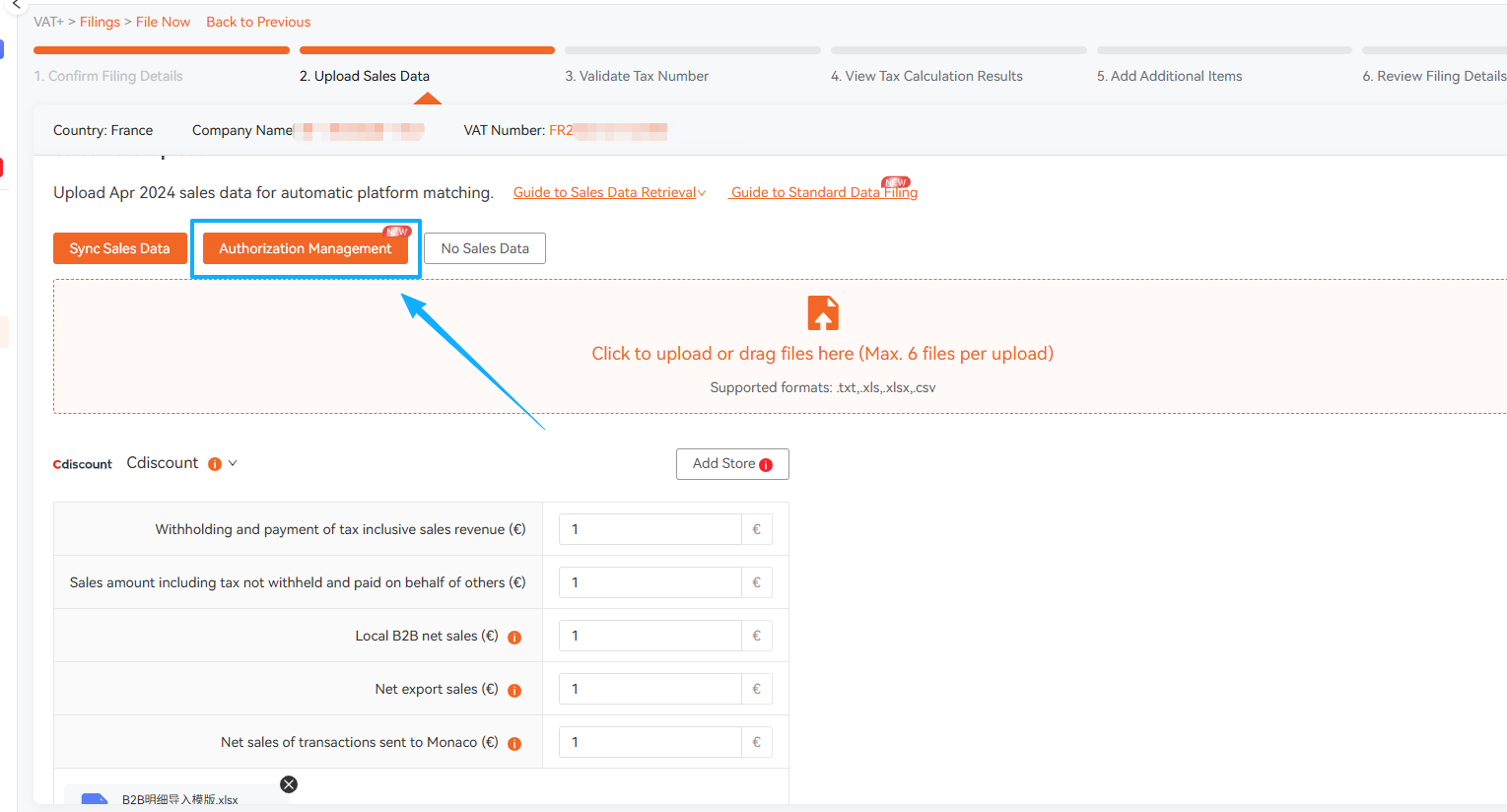
There are three methods for uploading sales data. Please choose according to your actual situation:
Option 1: Authorise Your Store
For stores that have already been authorised, during filing, the VATAi system can automatically retrieve the seller's sales data with one click. Currently, the VATAi system supports automatic VAT calculation for France VAT on platforms such as Amazon, Shopify, SHEIN, Cdiscount, etc.
Option 2: Upload Sales Data Manually
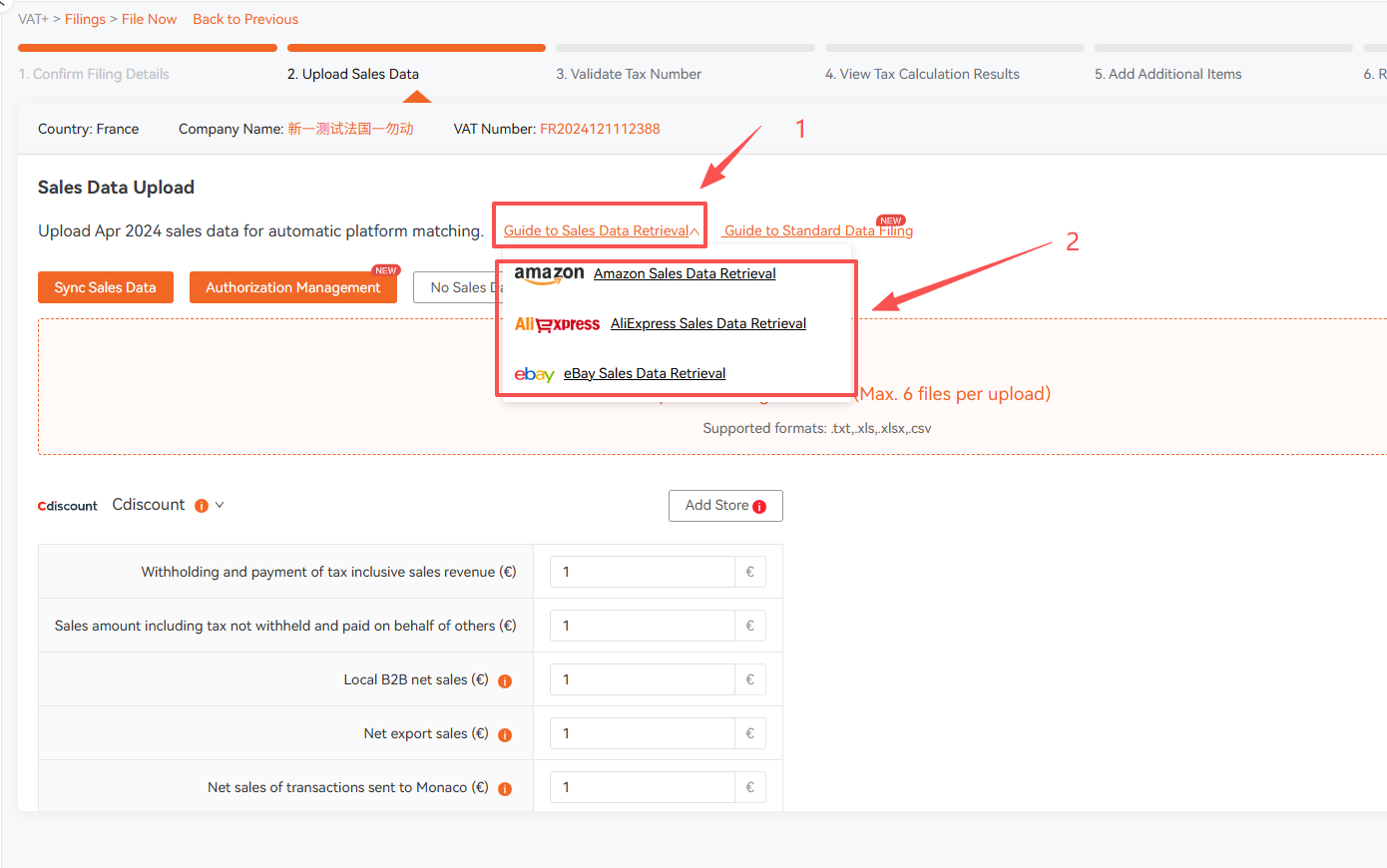
If you have not authorised VATAi to retrieve your store data, you will need to download the sales report from your store and upload it manually. The VATAi system provides step-by-step instructions for downloading sales reports from platforms such as Amazon, AliExpress. Please follow the instructions provided in the system.
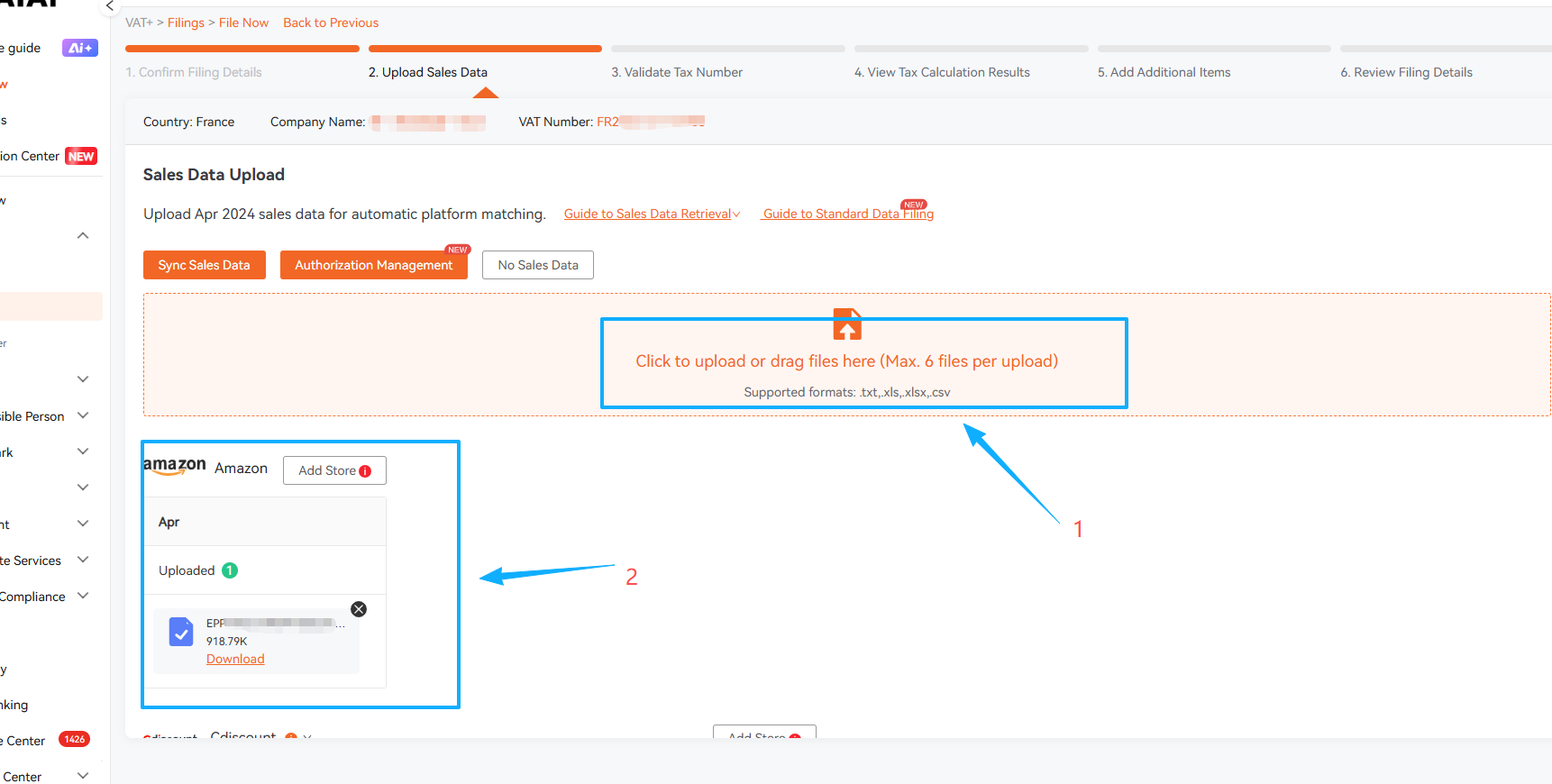
After preparing the sales data, click to upload it in the system. Once uploaded, the system will automatically identify the platform of the sales report. If the platform name is not displayed, it needs to be supplemented manually.
Option 3: Uploading Data from Other Platforms
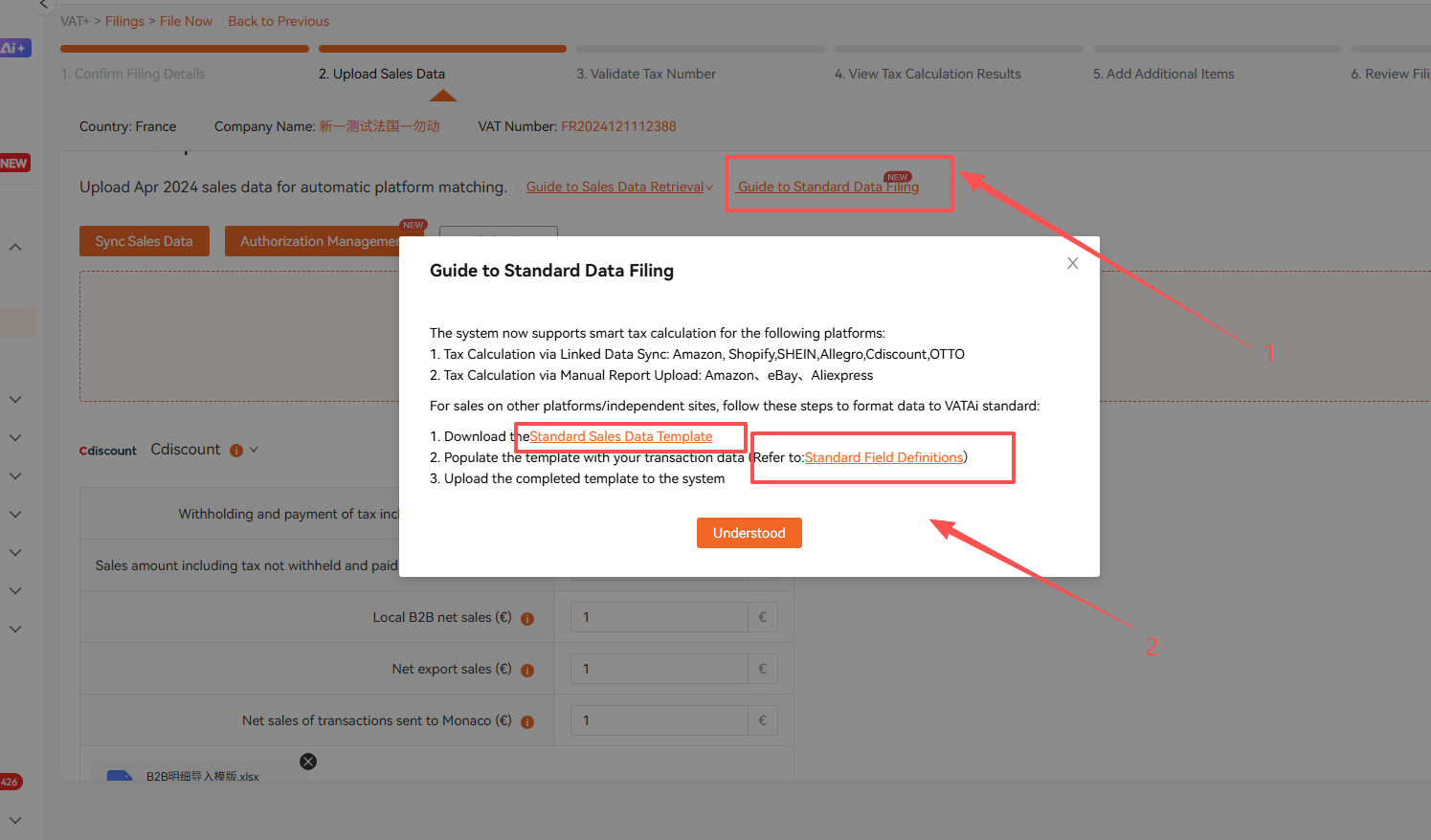
If the sales data you upload does not belong to any platform currently supported in the system, VATAi does not support automatic tax calculation. In this case, you need to fill in the store platform and manually calculate all required declaration data and enter them item by item. If you would like VATAi to calculate each declaration item for you, you need to download the [Standard Sales Data Template] and organize your data according to the requirements before uploading.
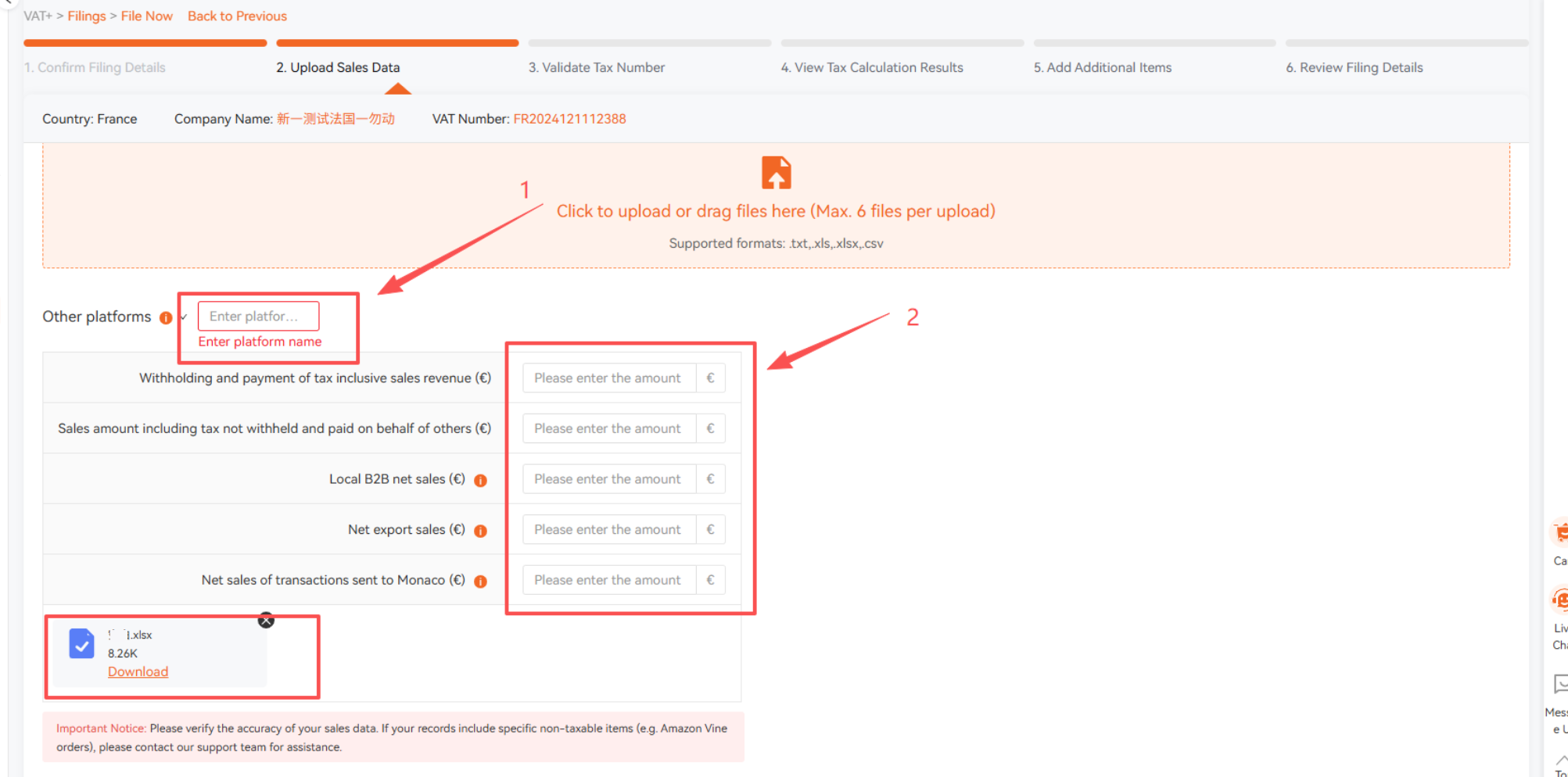
The specific requirements and data template can be downloaded from the system.
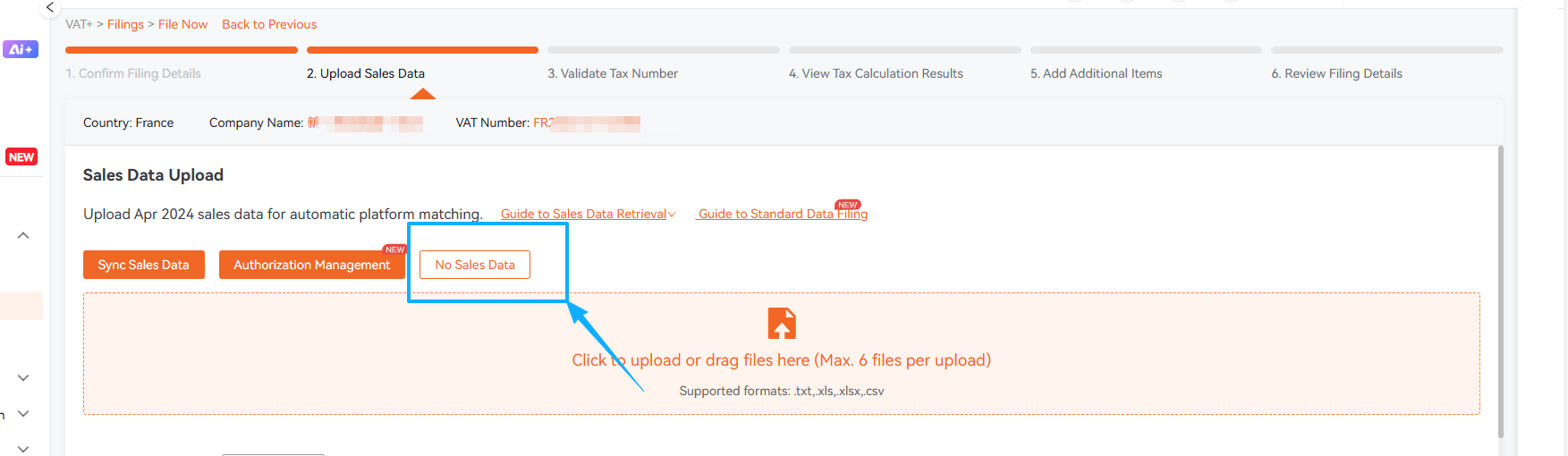
No Sales During the Filing Period
If there were no sales during the filing period, select No Sales Data.
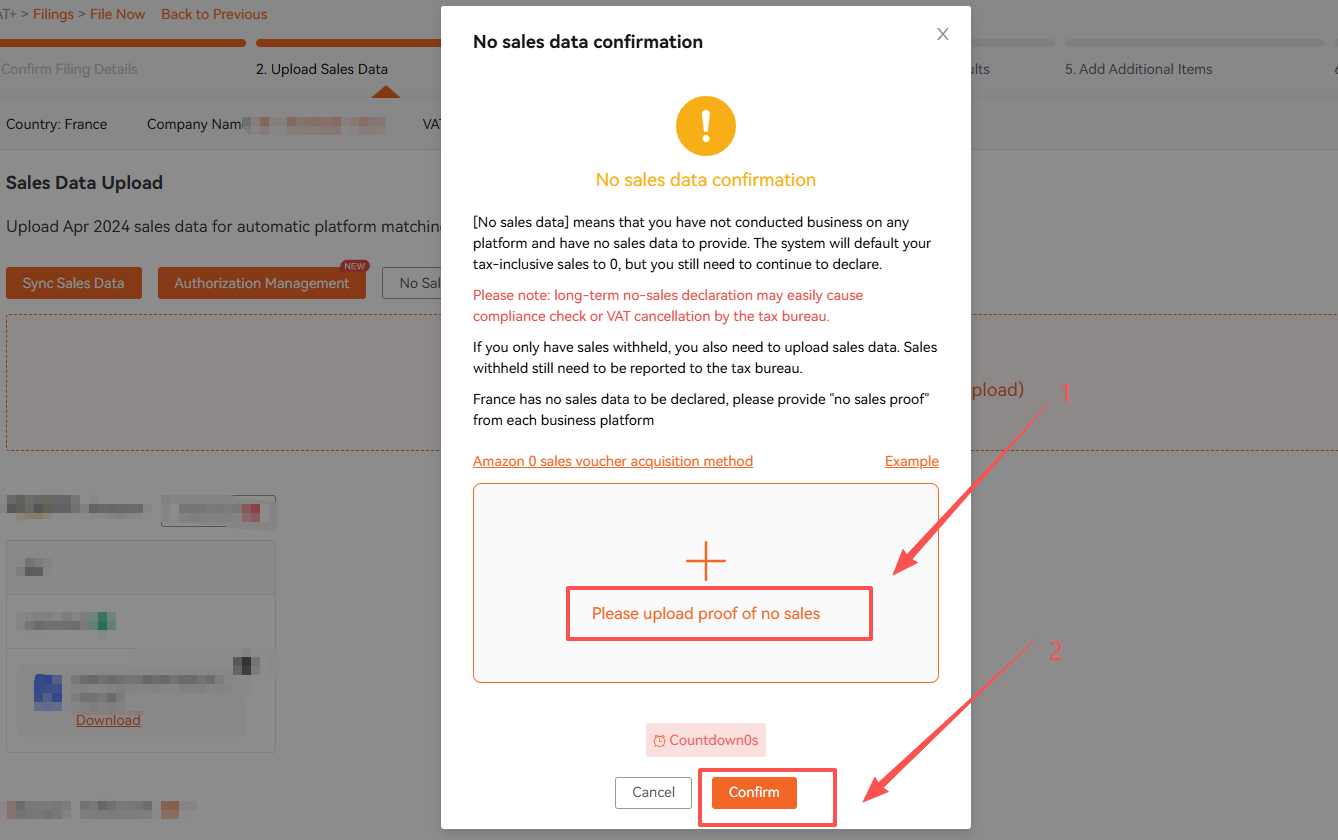
Upload the required proof of no sales as prompted by the system and confirm.
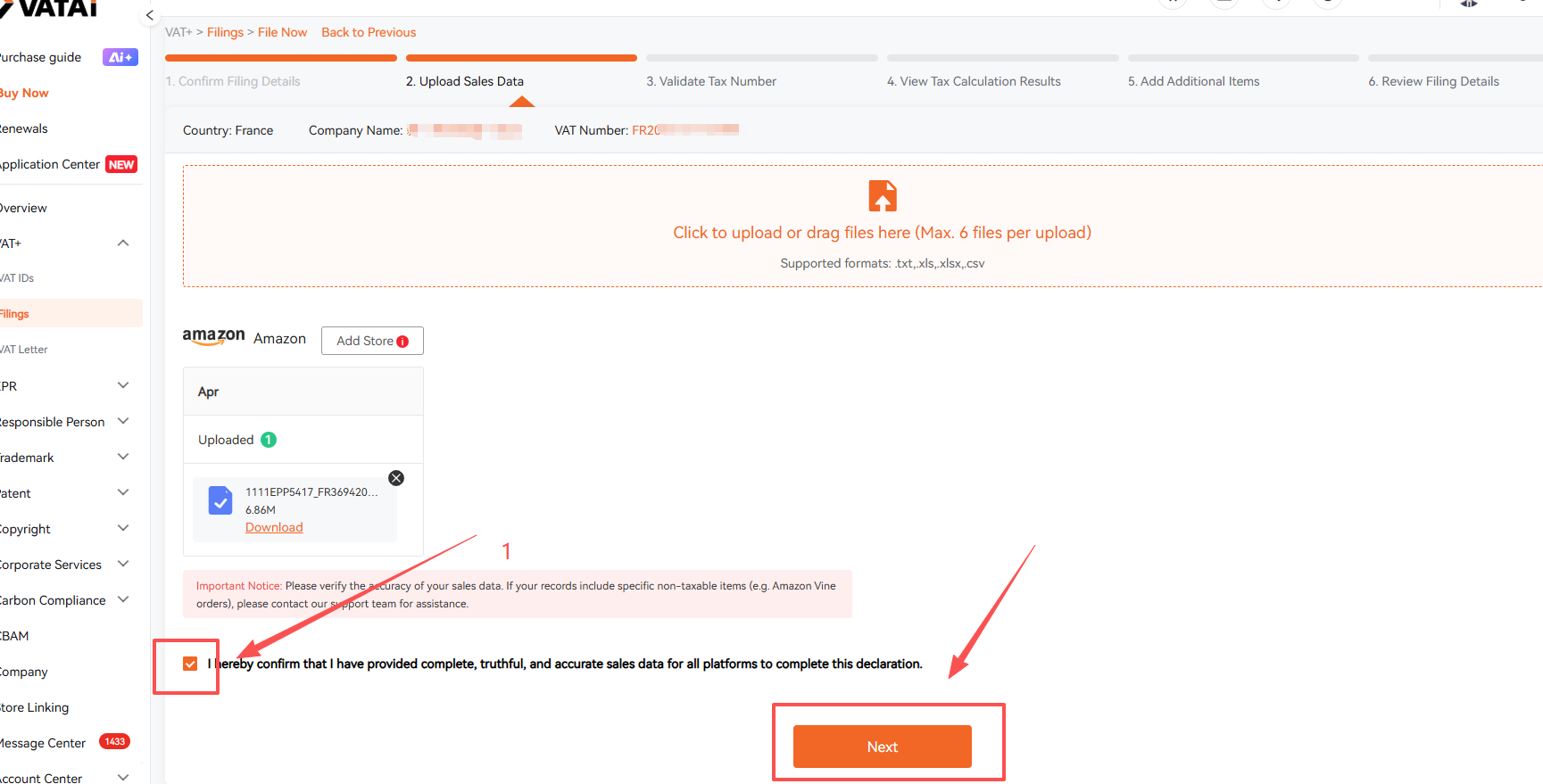
After all declaration data has been uploaded, check the risk acknowledgement and click Next Step to proceed with tax calculation.
Step 4: Verify VAT Numbers
Add all VAT numbers registered under the company. Click Verify VAT Number to check their validity.
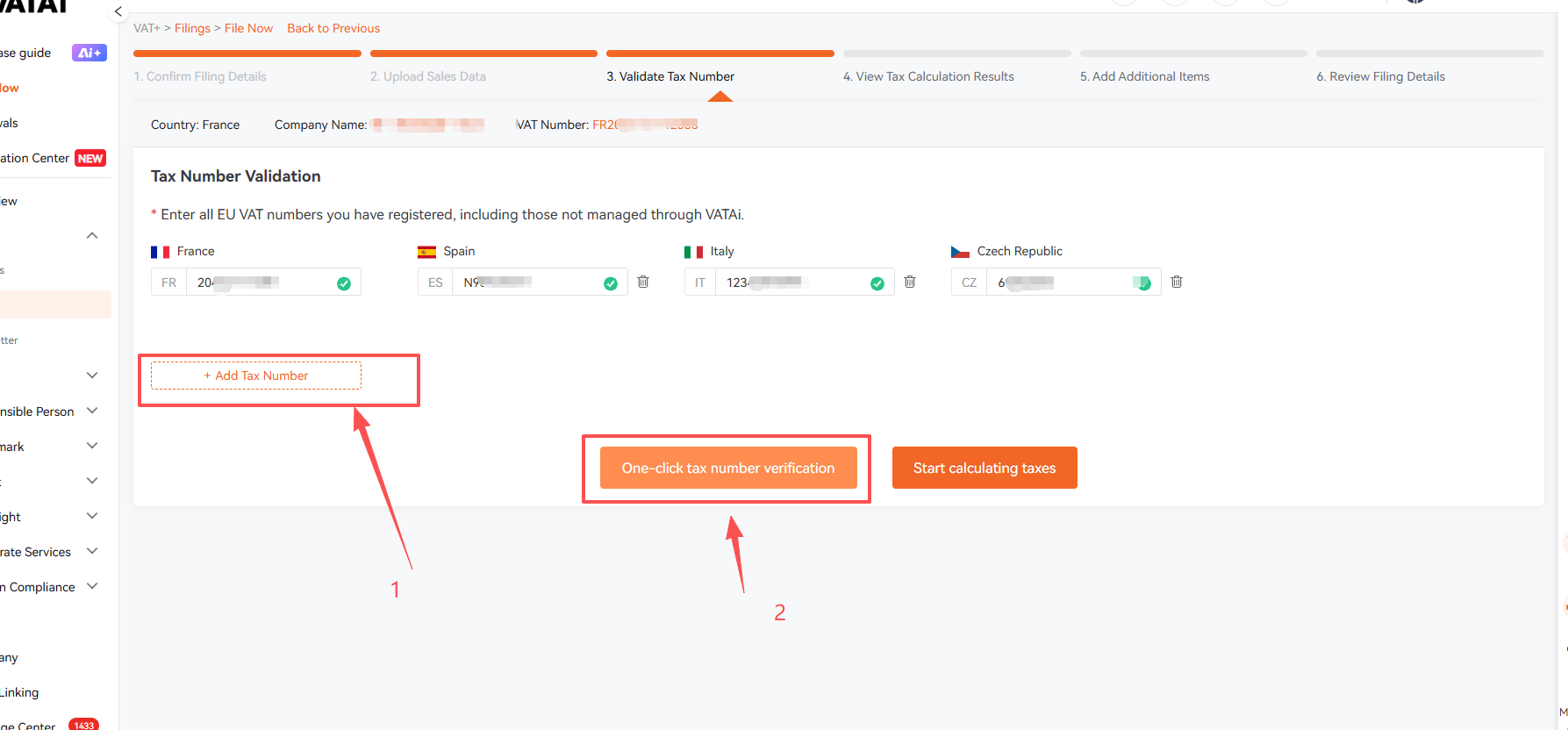
Once all VAT numbers are verified successfully, click Start Calculating Taxes.
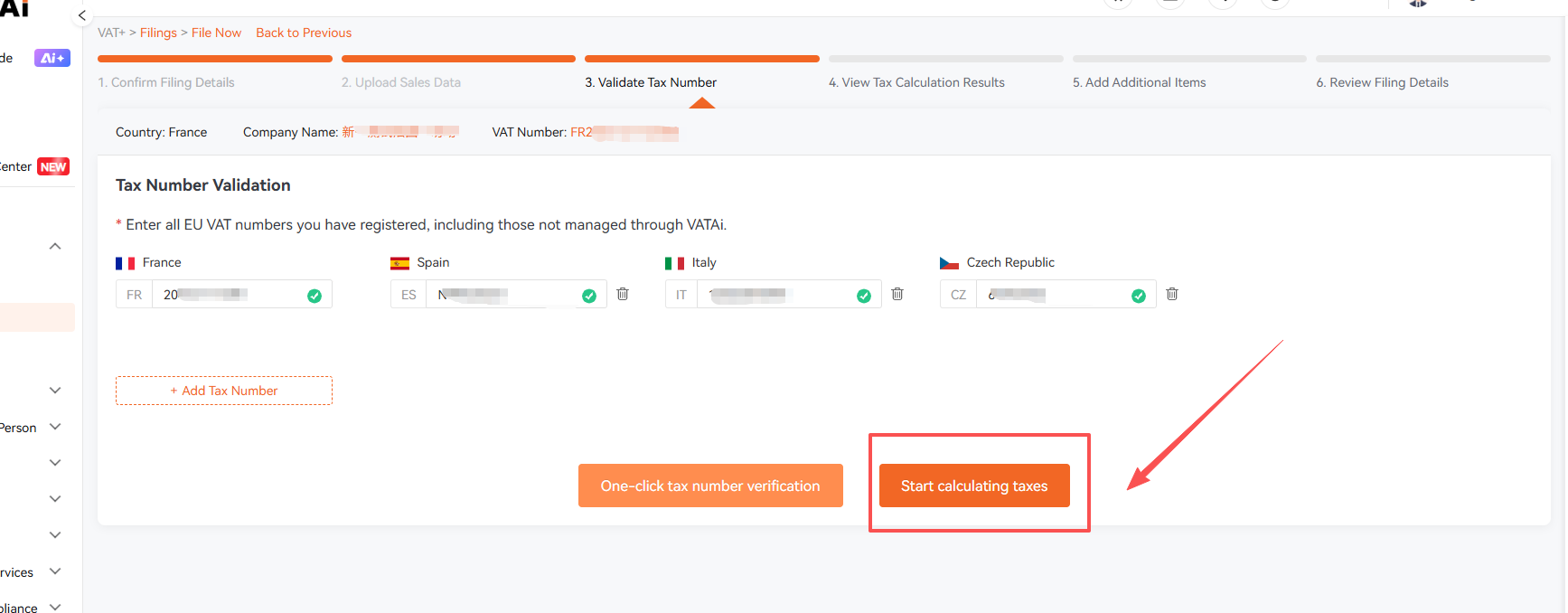
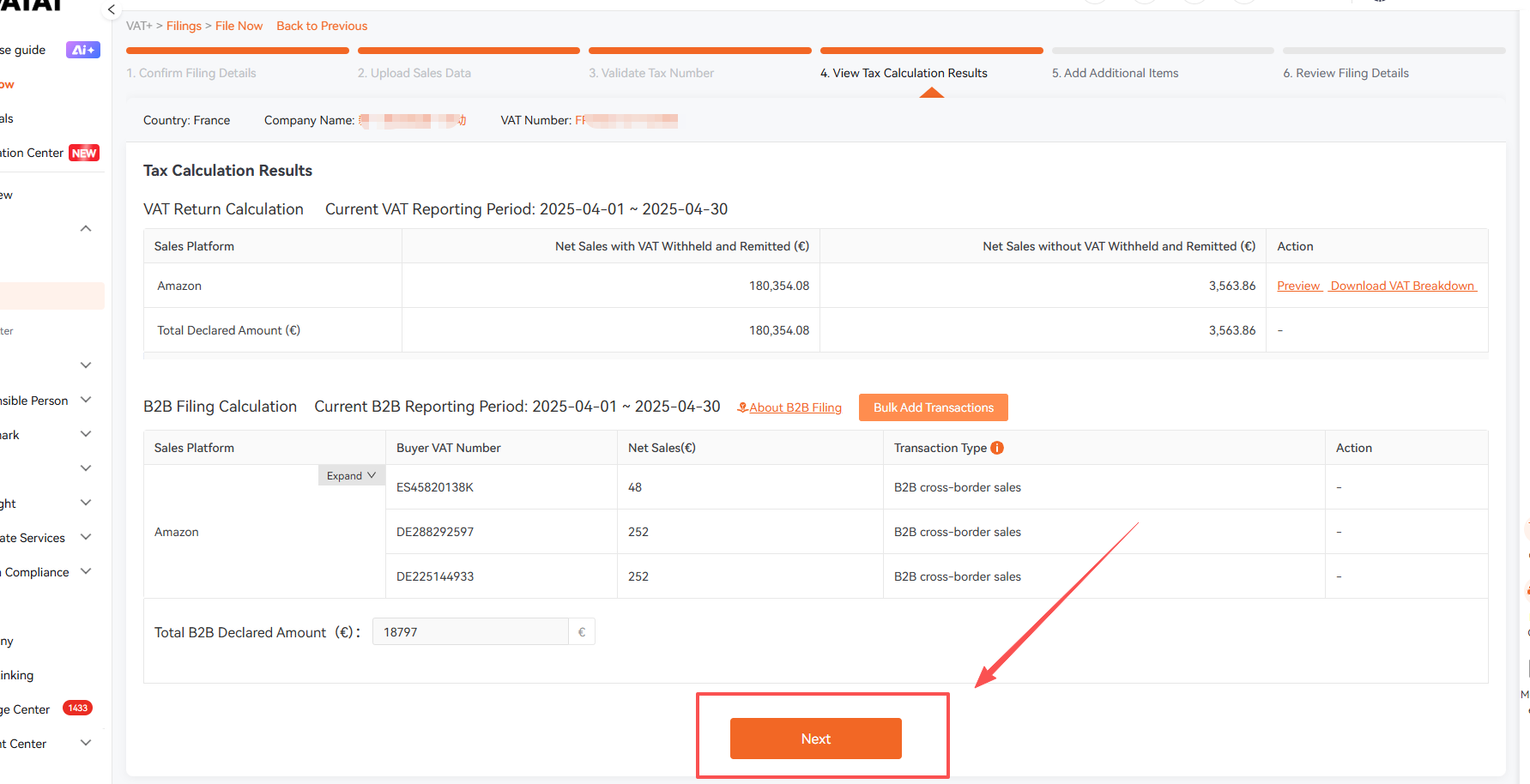
Step 5: Review Tax Calculation Results
After the tax calculation is completed, the system will display the VAT calculation results.
Cross-border B2B Transactions
Currently, cross-border B2B transactions must be declared separately to French customs. If there are any such transactions not reflected in the sales report, you may manually enter the transactions that need to be declared. If there are a large number of transactions, you may choose to upload them in bulk according to the system instructions.
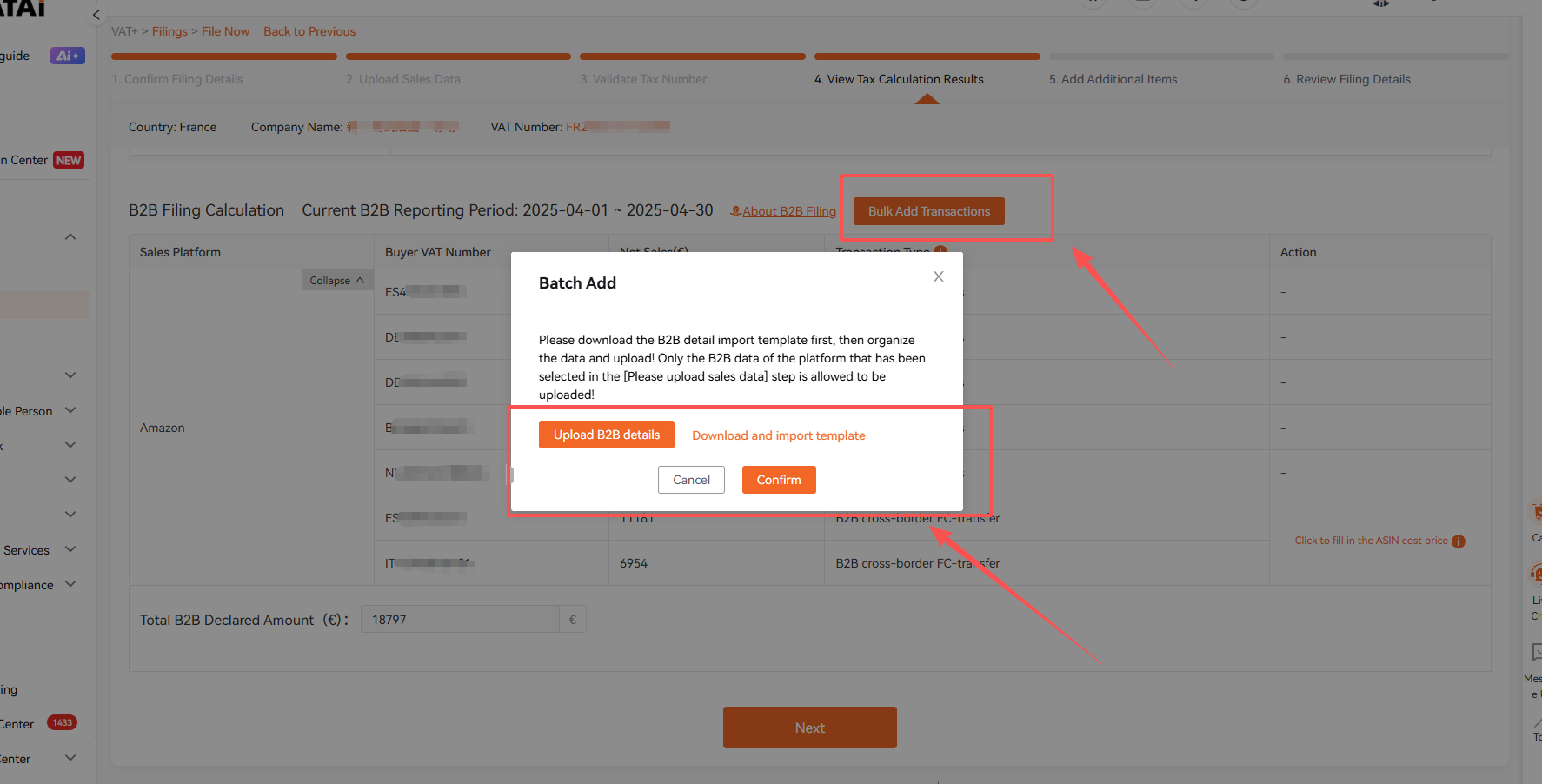
Cross-border B2B Warehouse Transfers
Sales reports often do not include the product value for warehouse transfer transactions.
In this case, the VATAi system will estimate the product value based on order data.
If adjustments are needed:
- Edit the ASIN unit price
- Save the changes
The system will automatically recalculate the declaration based on the updated value.
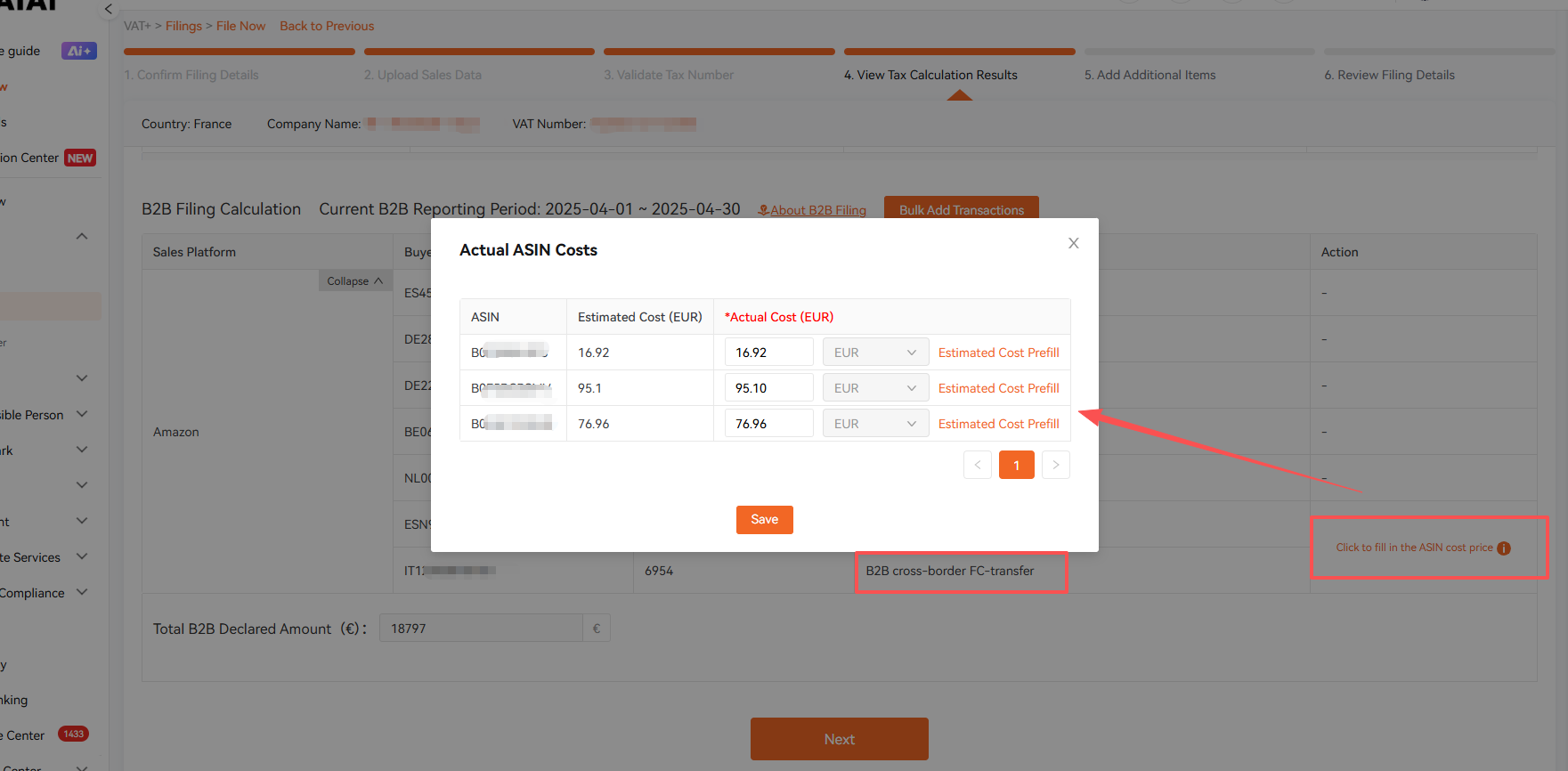
Once all information is verified, proceed to the next step.
Step 6: Add Additional Declaration Items
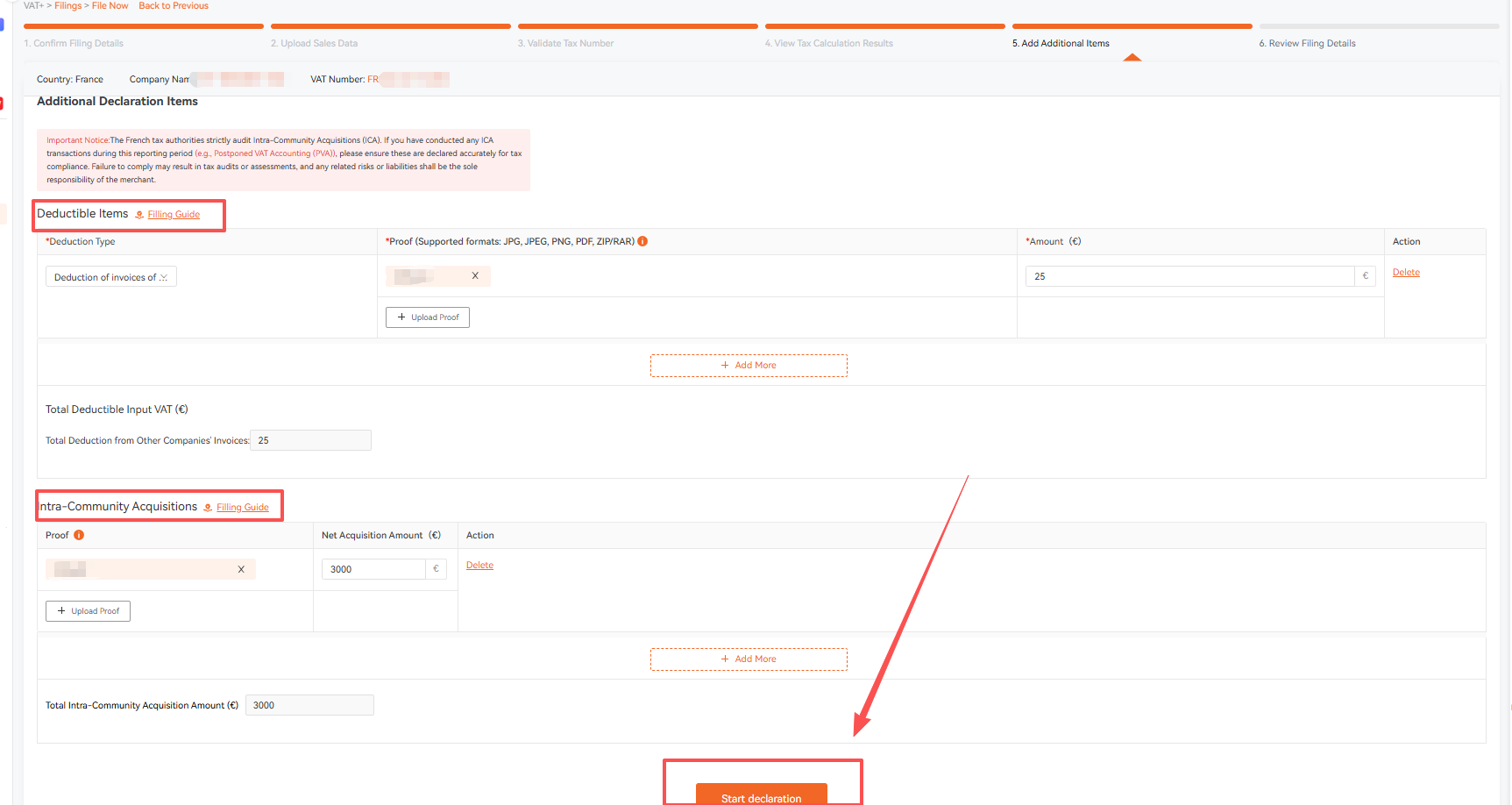
Click Next Step. If you need to declare deductible items or purchase invoices, you may upload the relevant documents here, including Intra-EU purchases and Deferred import VAT, please ensure that the deductible value or purchase amount is entered accurately.
If there are no additional deductible or purchase documents, you may skip this step. Click Start declaration to proceed.
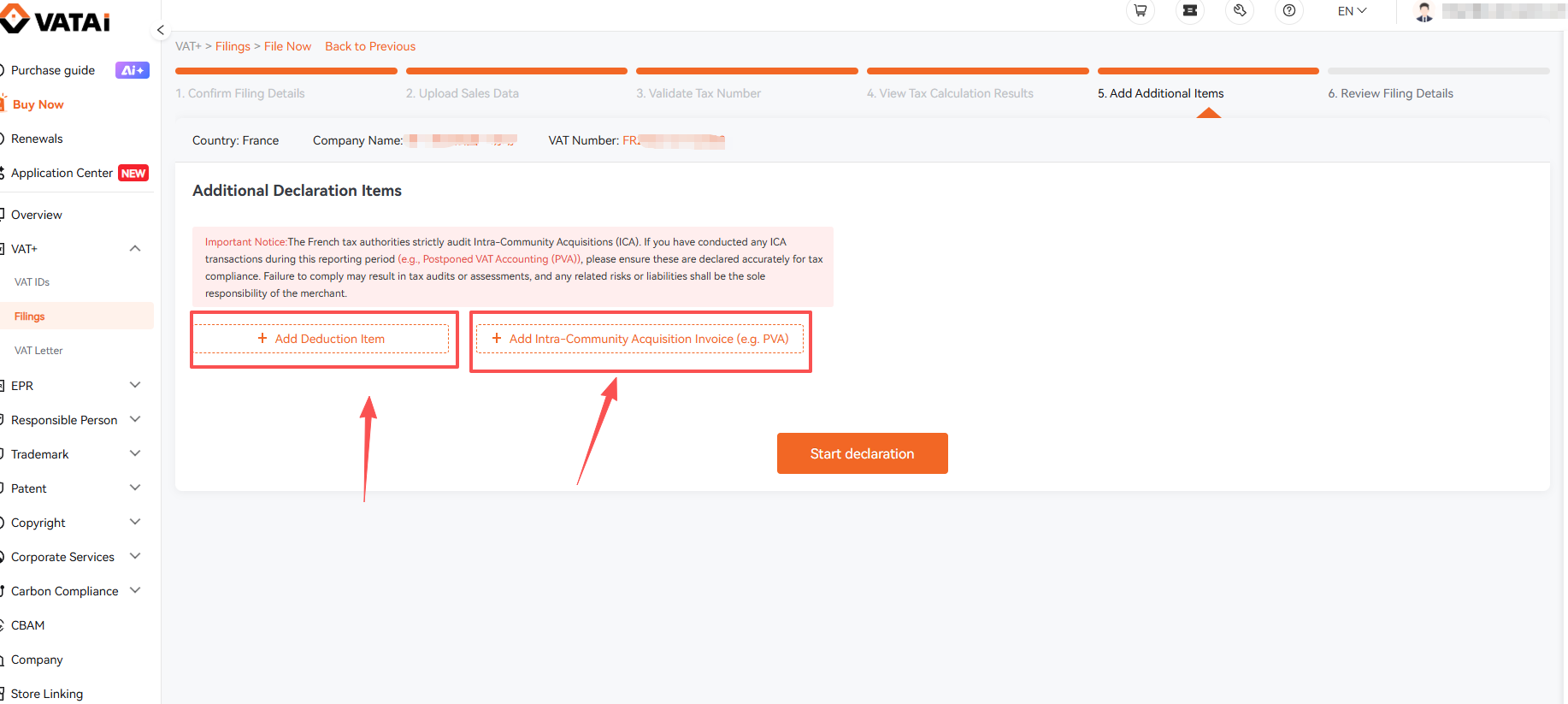
If there are relevant documents, you need to read the document requirements carefully and confirm that they meet the criteria before uploading. Then click Start Declaration.
Step 7: Review Filing Details
If VAT is payable for the current period, click View Tax Confirmation Letter. You must complete the payment using the bank account details provided in the confirmation letter.
Please carefully verify:
- The payment recipient bank account
- The payment reference information
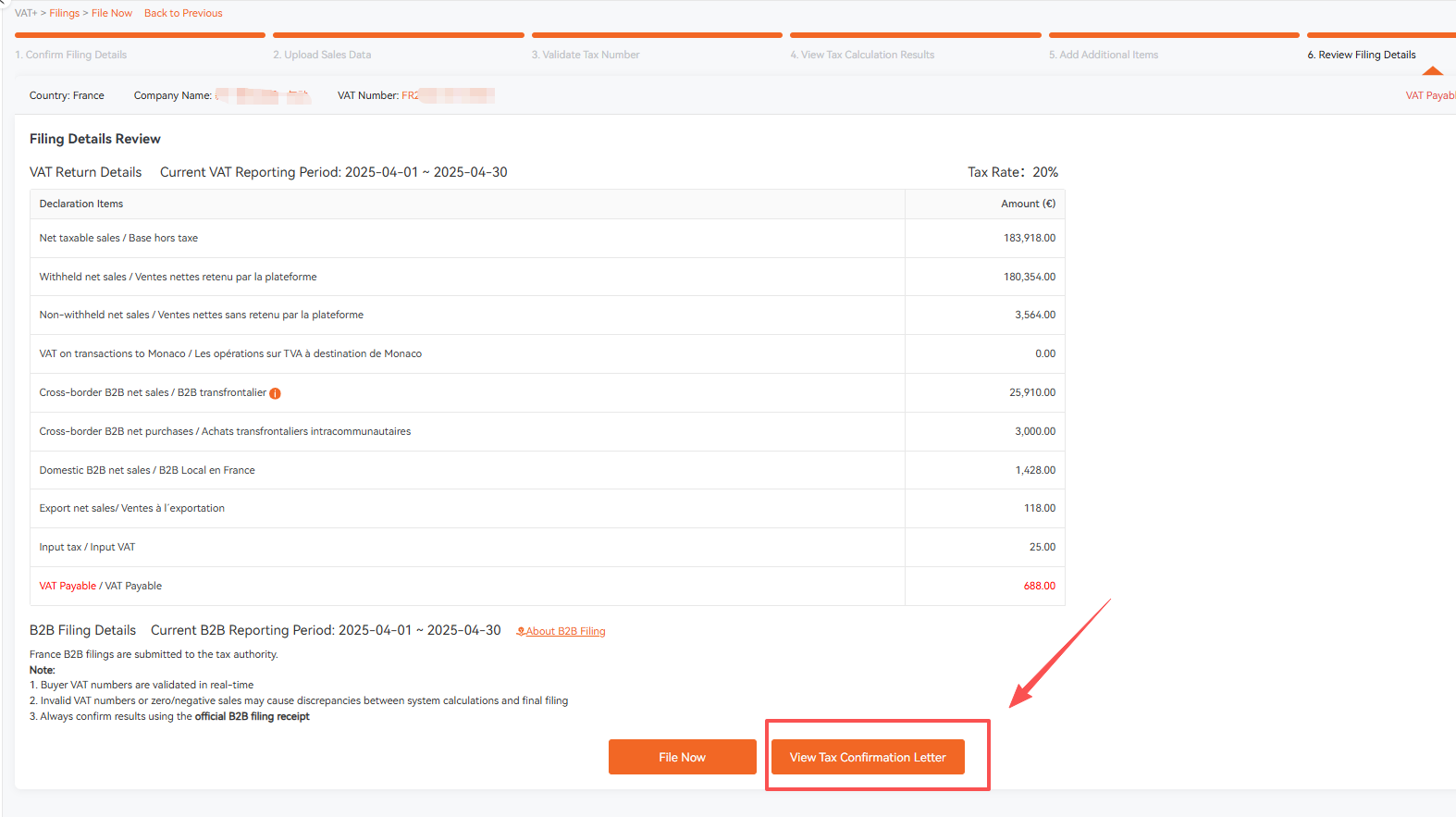
If there is no tax payable, or if you have already completed the payment and obtained the payment proof, you may proceed with submission.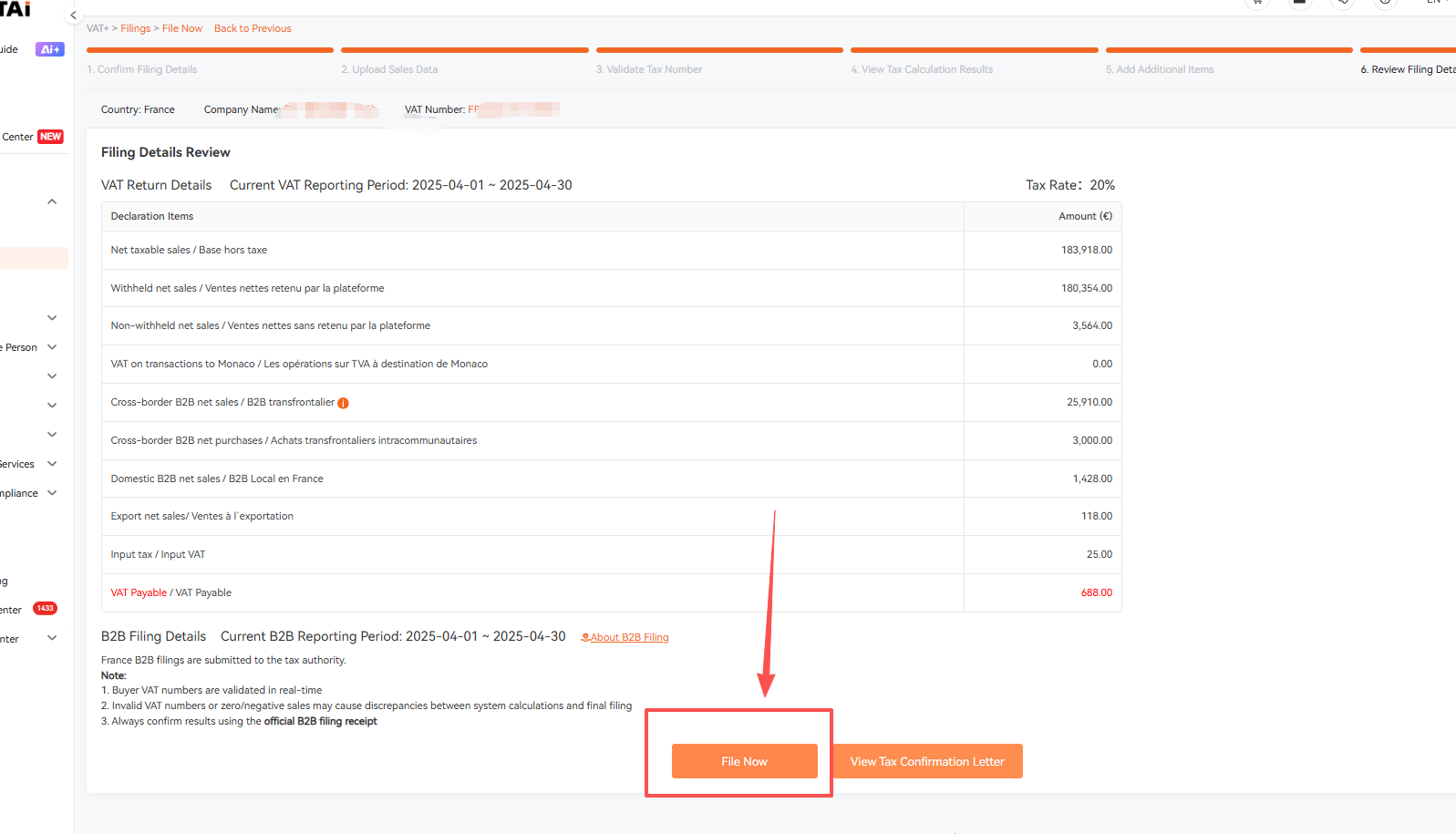
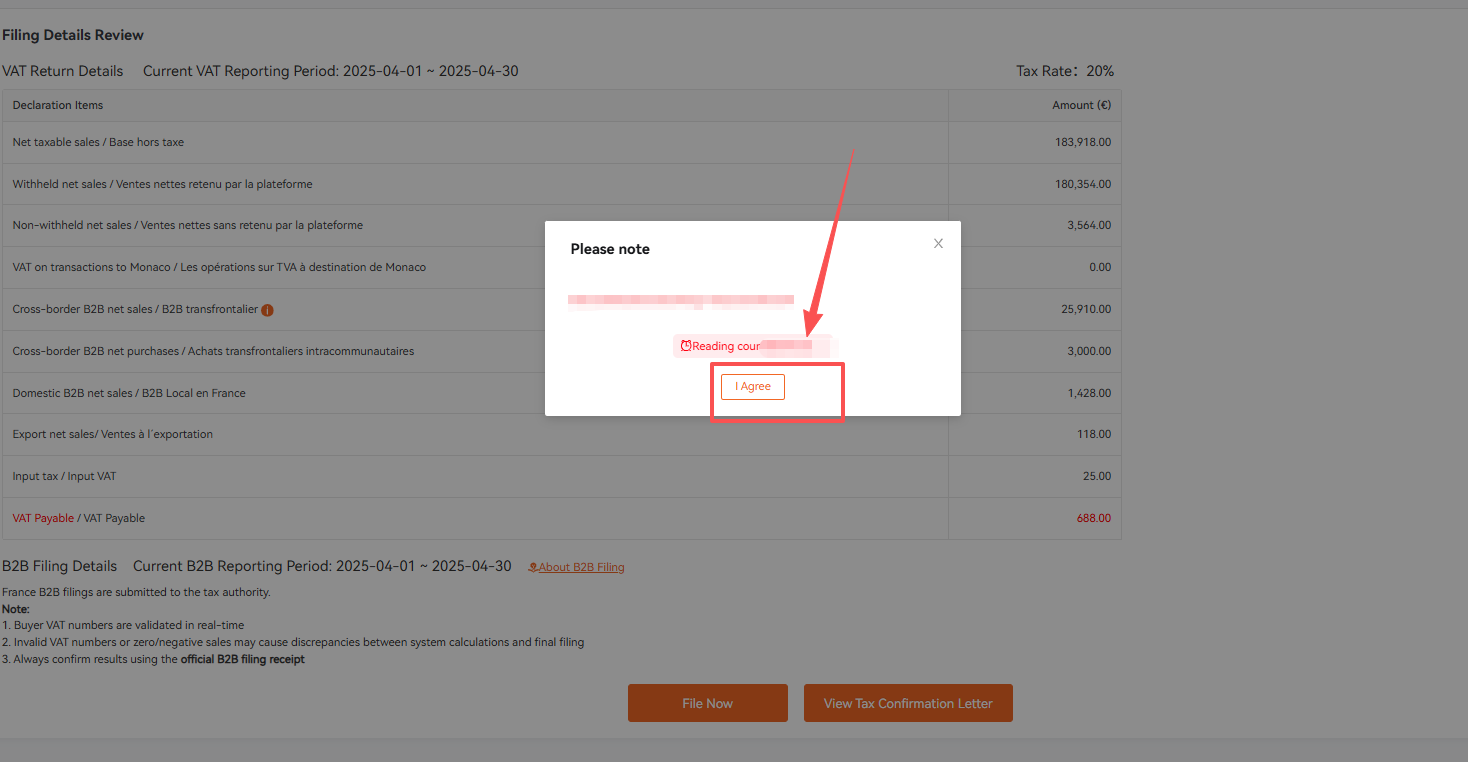
Upload the payment proof, click Confirm
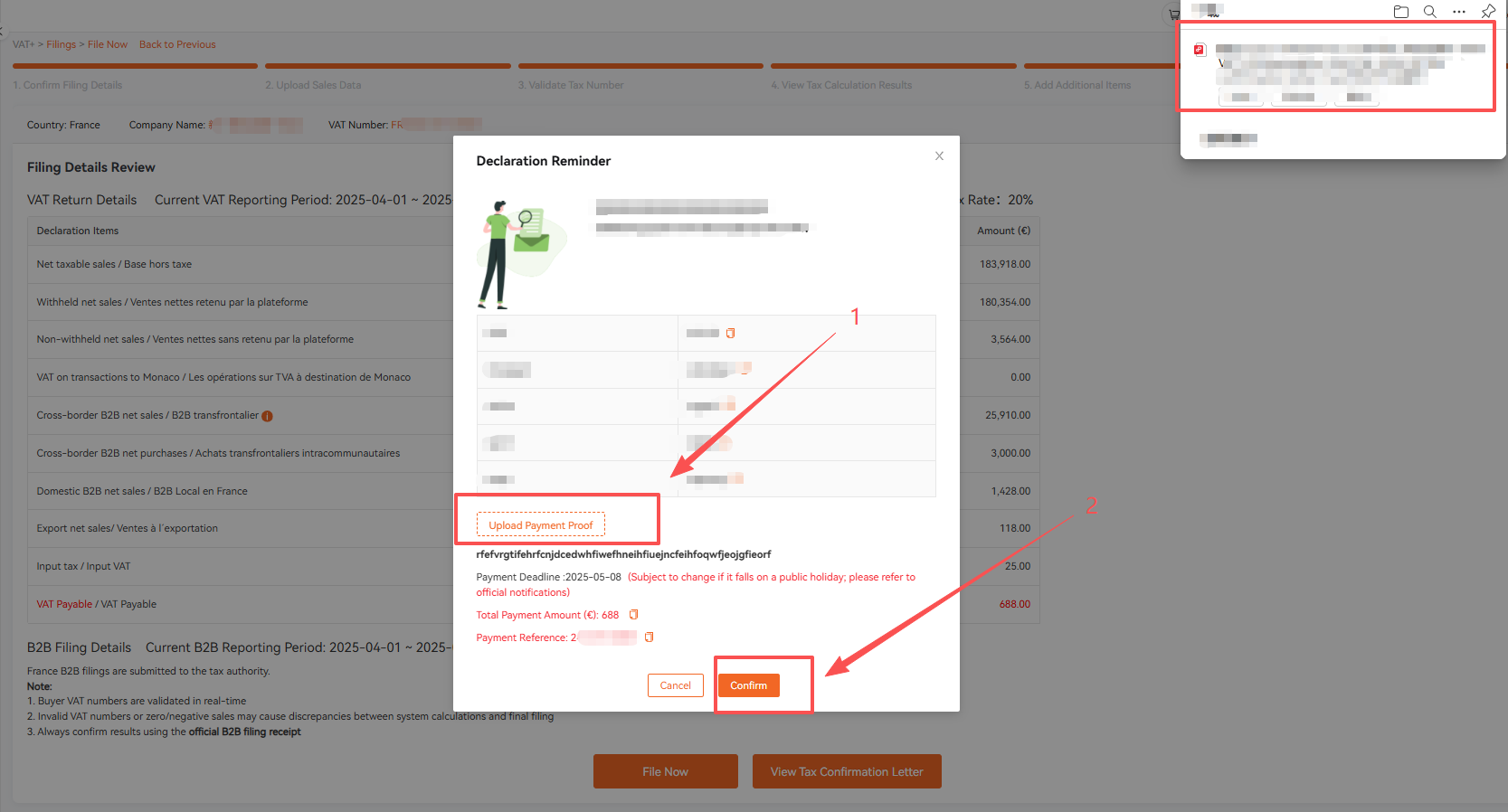
Step 8: Filing Submitted Successfully
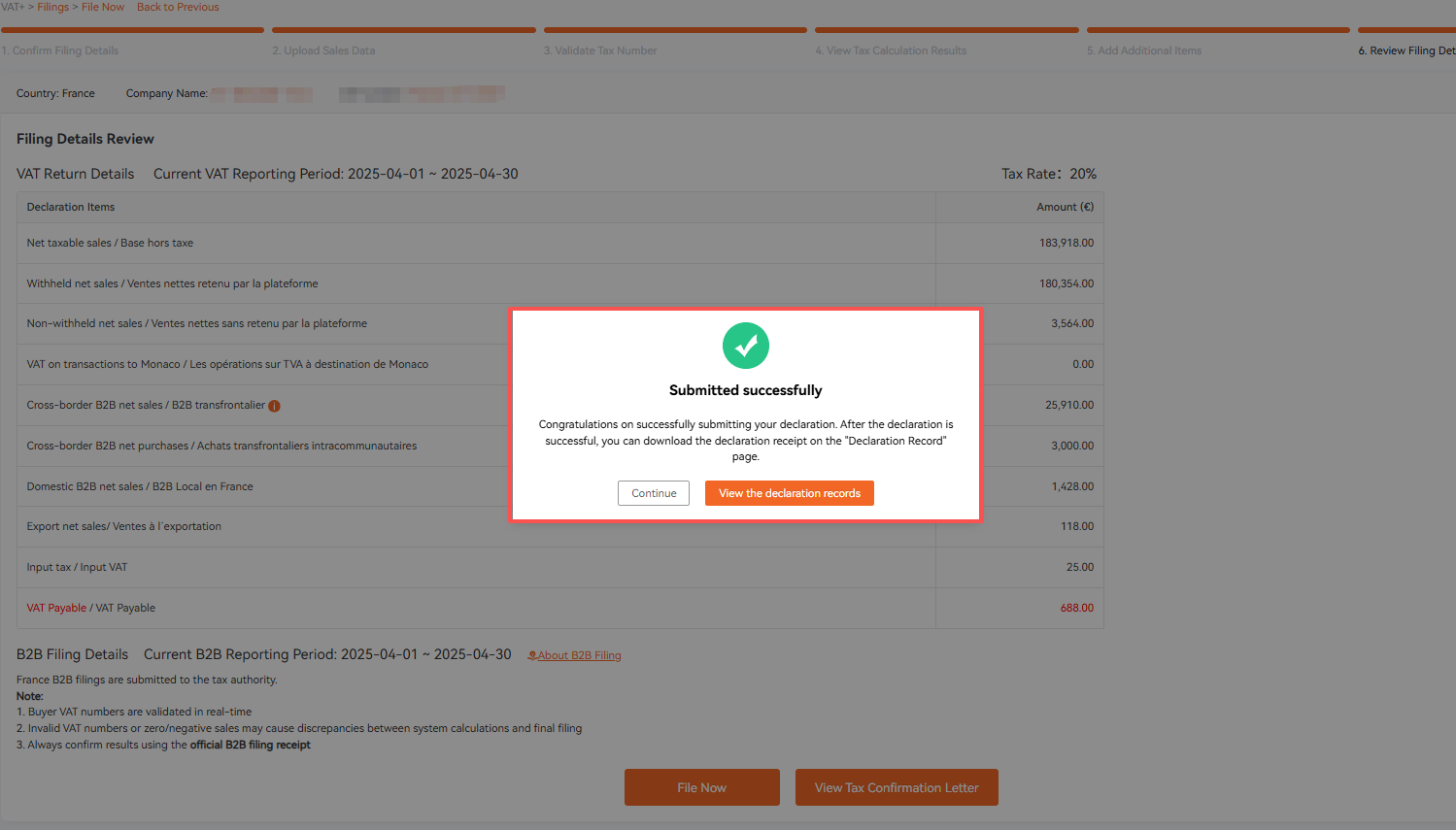
Your French VAT filing has been successfully submitted.