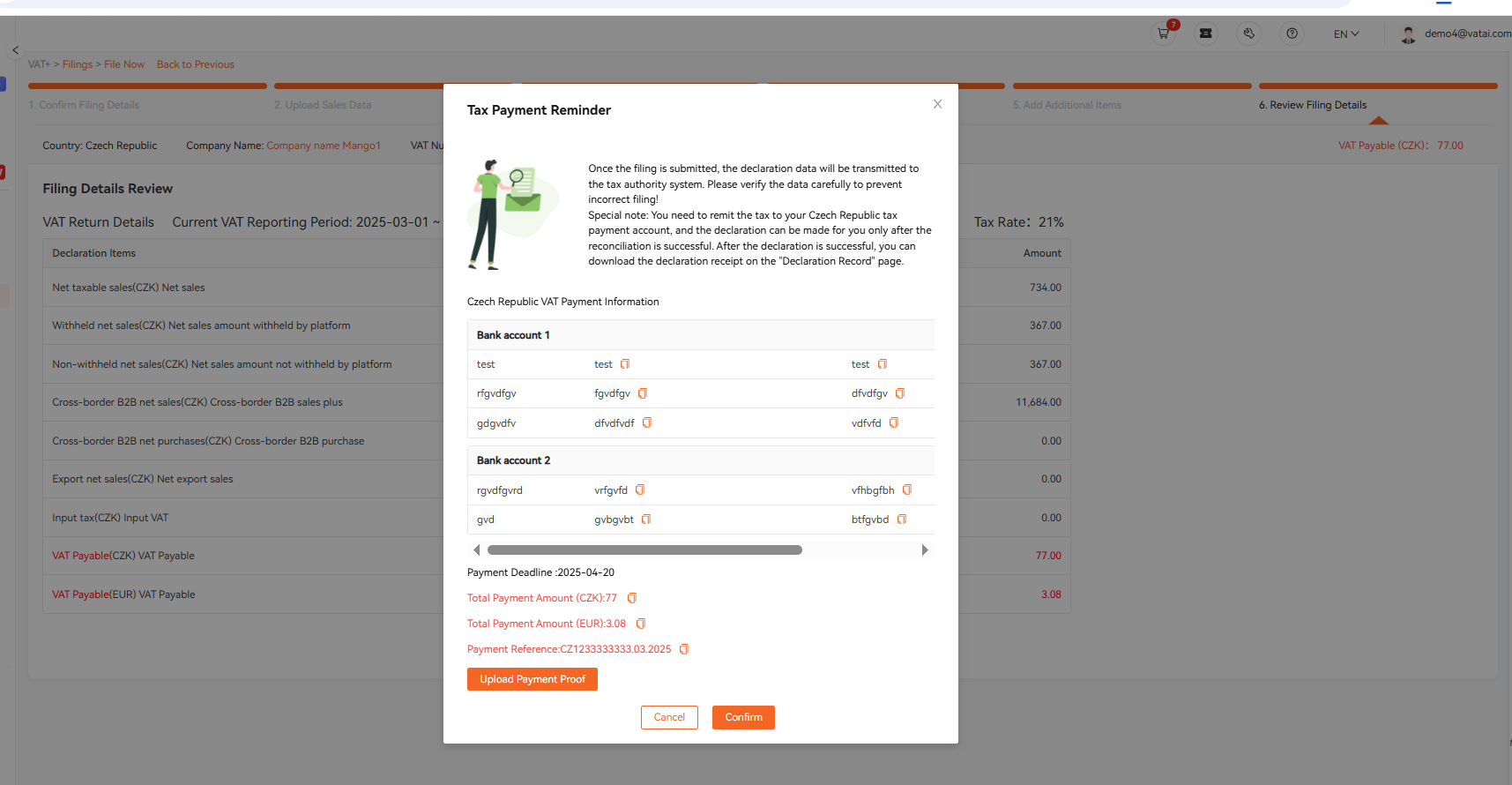
Access the Filing Interface
Go to [Filings] → [Pending Filing], select [Czech Republic], locate the corresponding reporting month under [Reporting Period End Month], and click [File Now].
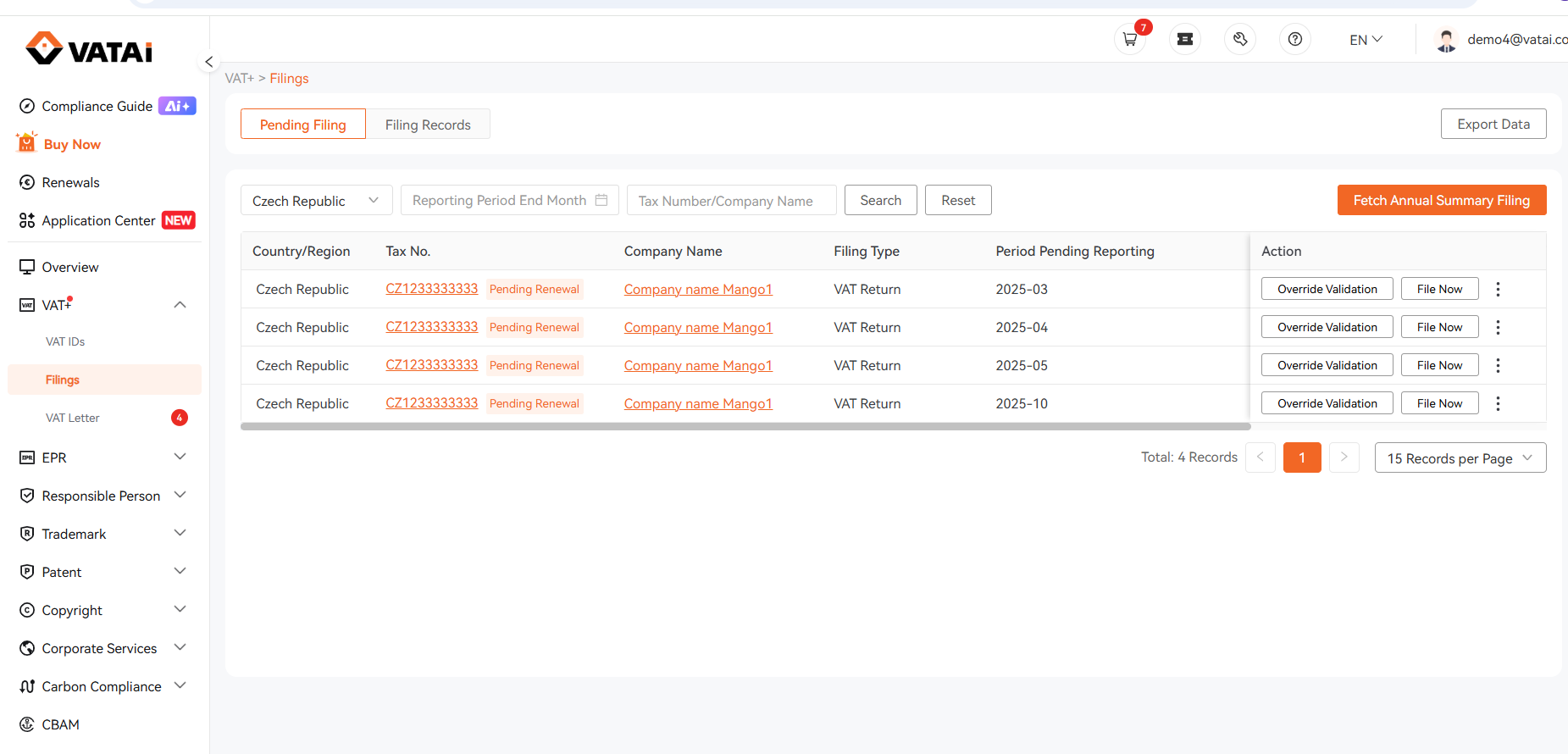
① Confirm Filing Details
Please check the filing information. After verification, truthfully fill in the required details under [VAT specifics]:
• If you have an OSS number: Select [YES], and enter the OSS registration start date and relevant country.
• If you do not have an OSS number: Select [NO]
Click [Next step] once completed.
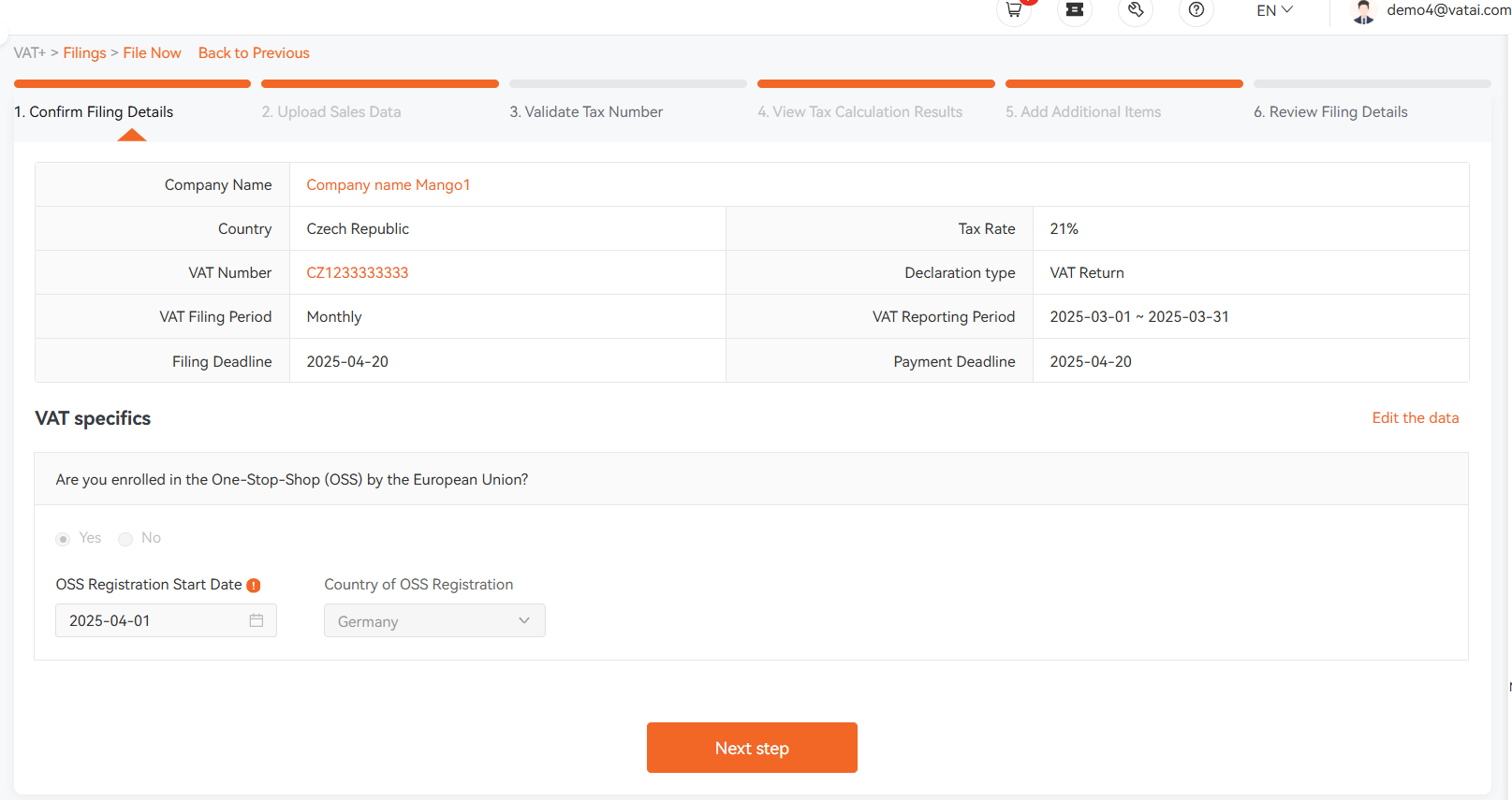
② Upload Sales Data
• Method 1: Click [Click to upload or drag files here] to upload platform data (automatic tax calculation supported for Amazon, AliExpress and eBay).
• Method 2: Authorize platforms via [Authorization Management]. After authorization, the system will automatically capture data around the 4th of each month. Click [Sync Sales Data] during filing to auto‑populate the data.
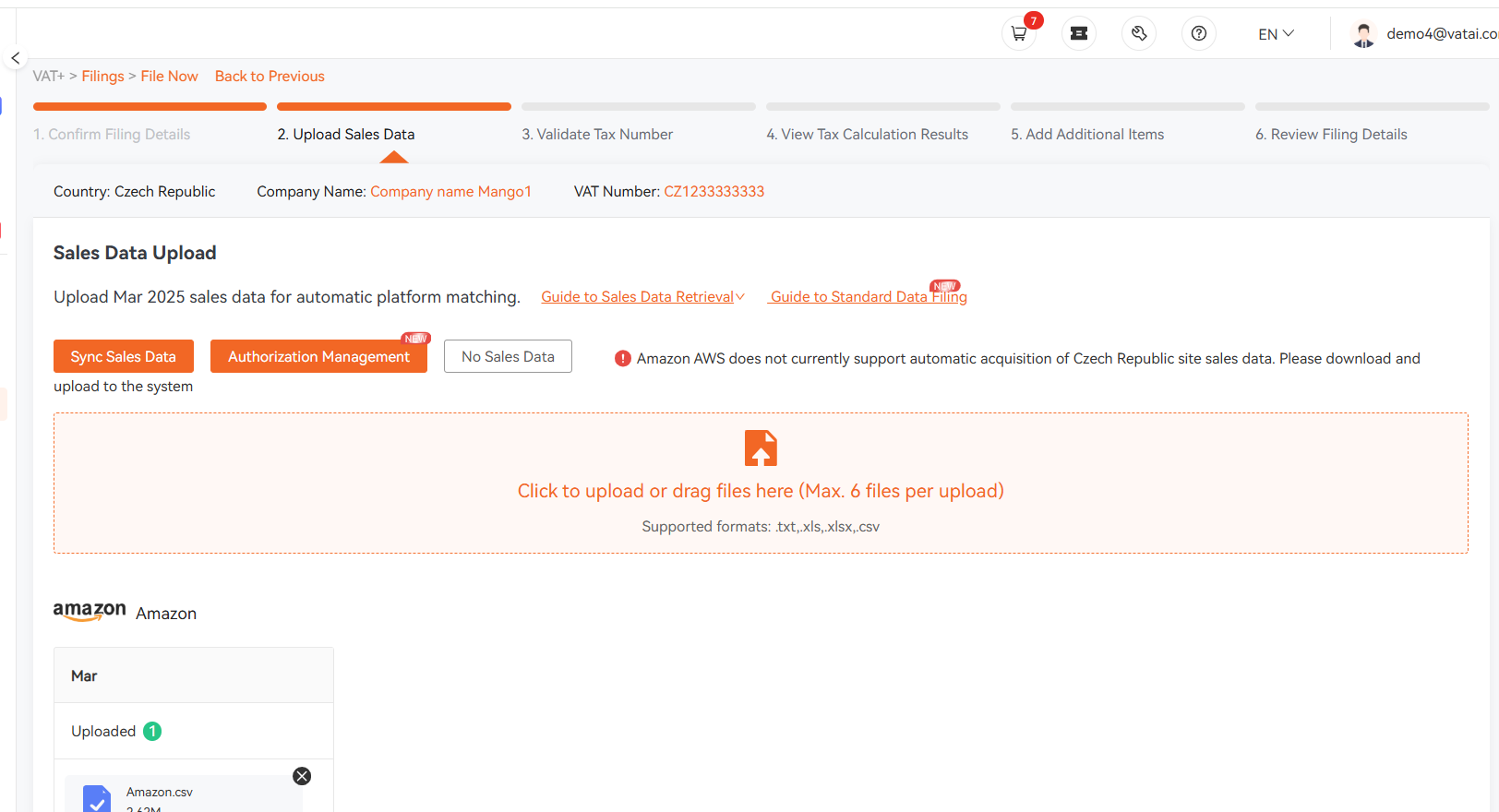
Hover your mouse over [Sync Sales Data] to view the platforms and countries for which the system currently supports automatic sales data retrieval.
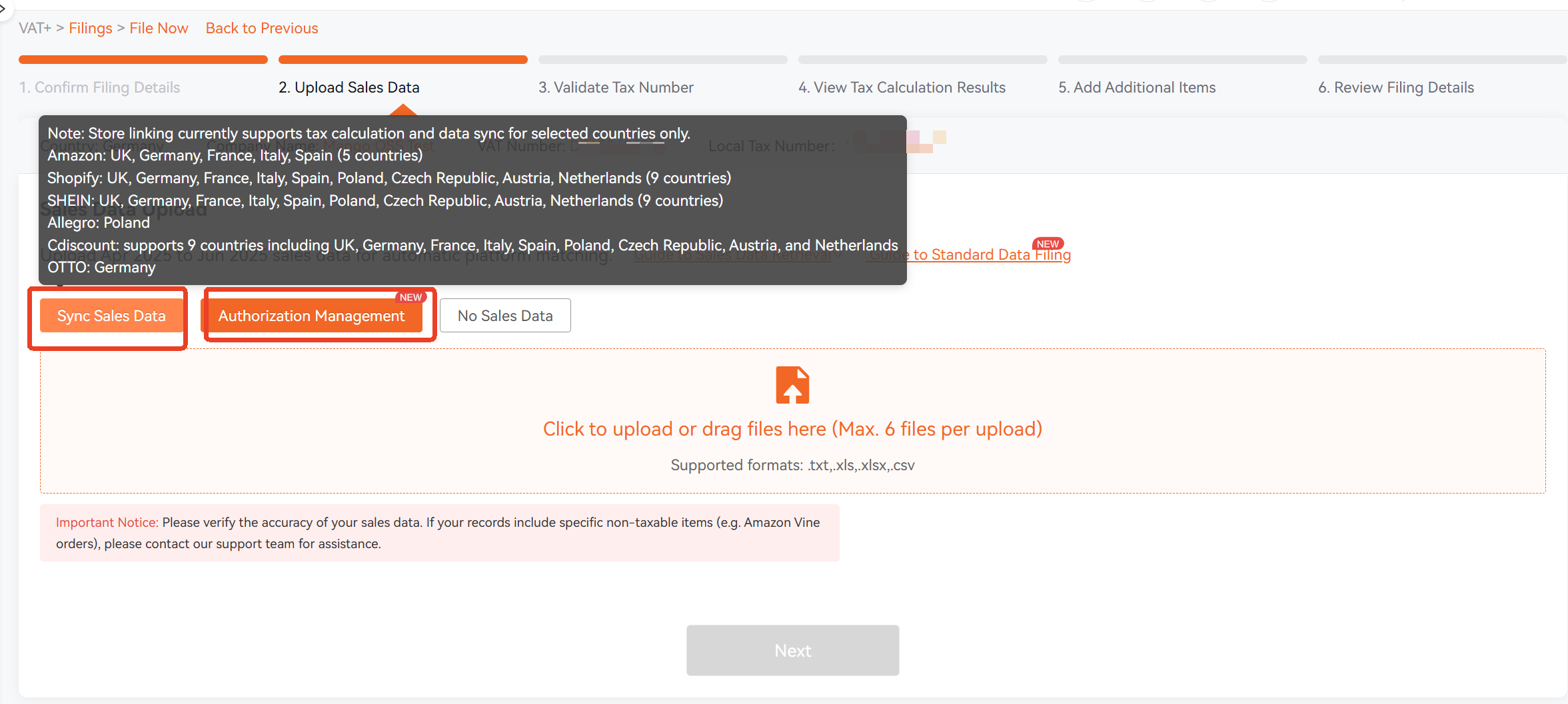
• Method 3: If none of the above methods apply, you may download the [Standard Sales Data Template] under [Guide to Standard Data Filing], fill it out as required, and upload it to the system for tax calculation.
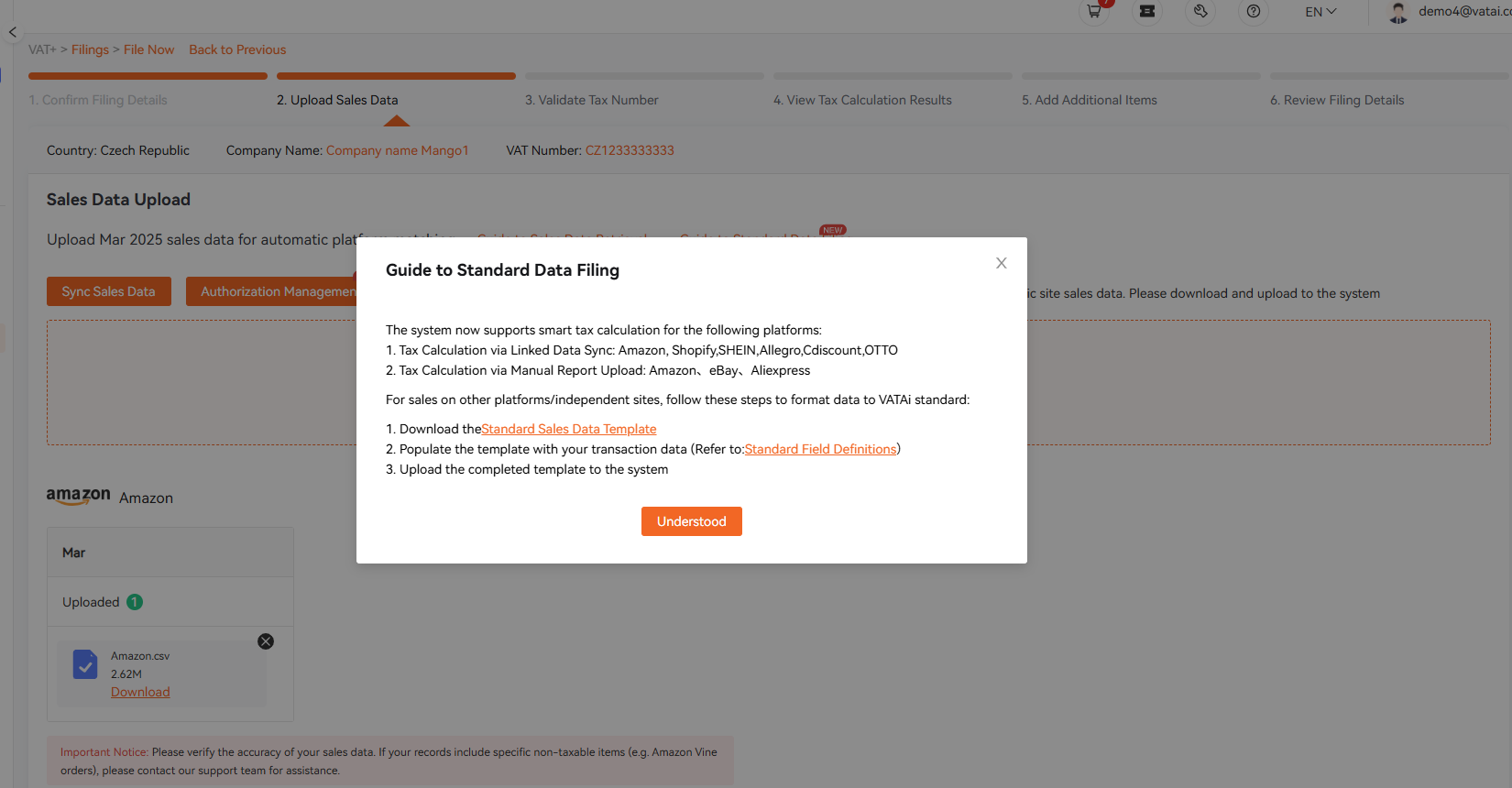
If there is no sales data, select [No Sales Data] to submit the filing. Click [Confirm] once data upload is completed.
③ Validate Tax Number
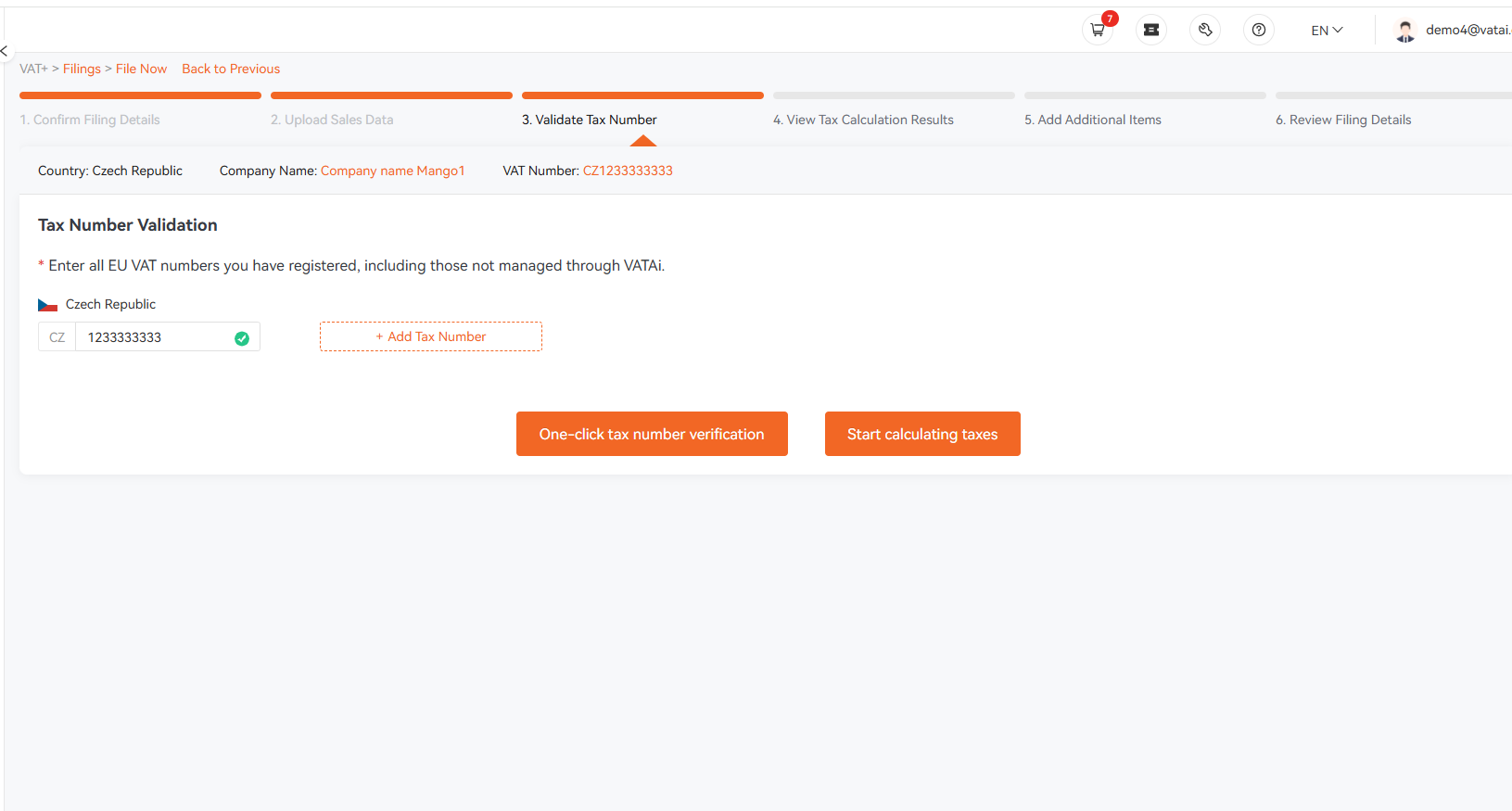
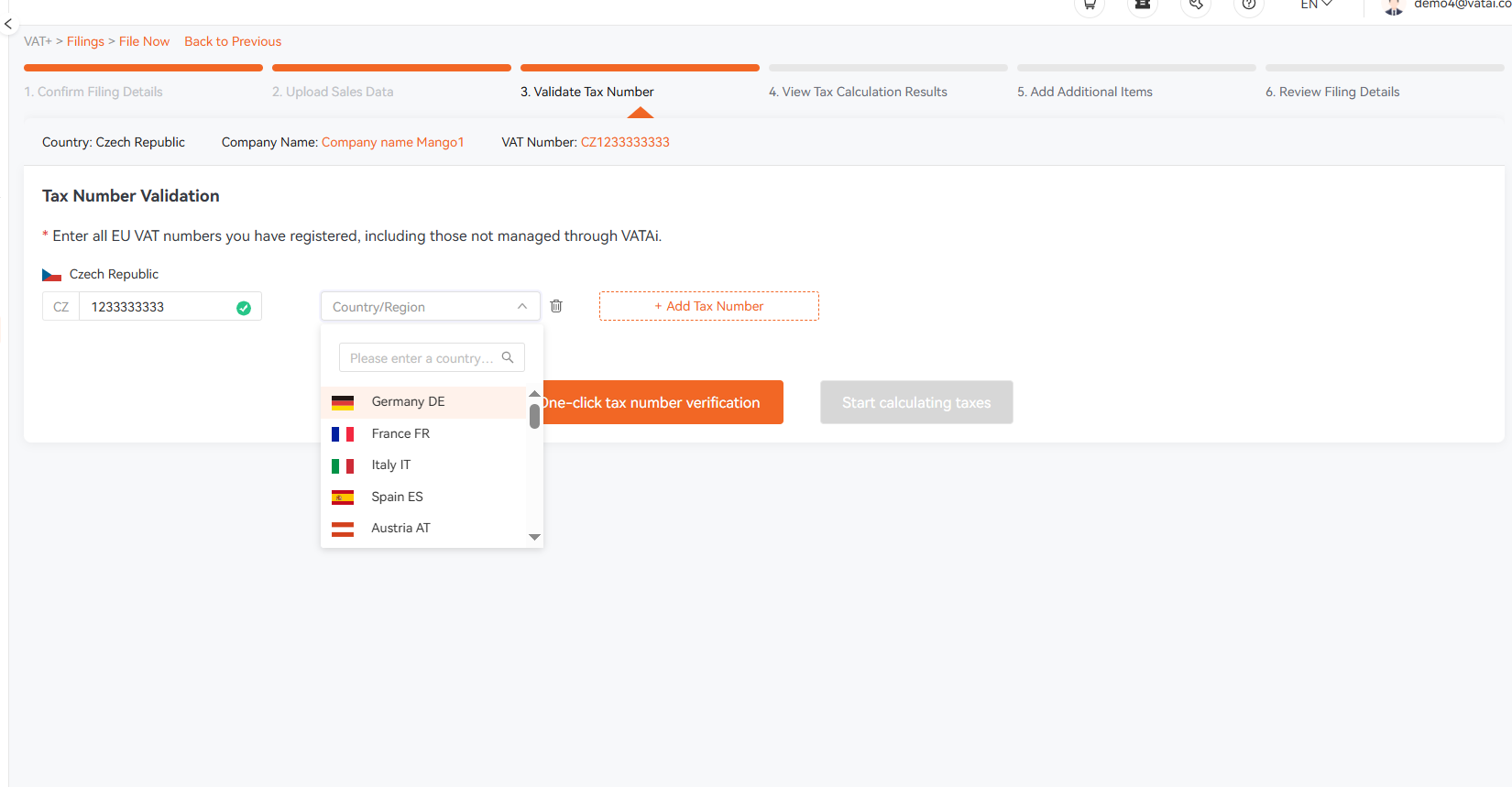
Click [Add Tax Number], and fill in all EU tax numbers. After clicking [One-click tax number verification], click [Start calculating taxes]. Be sure to enter all your existing EU tax numbers here. Failure to fill in all valid tax numbers will affect the tax calculation results.
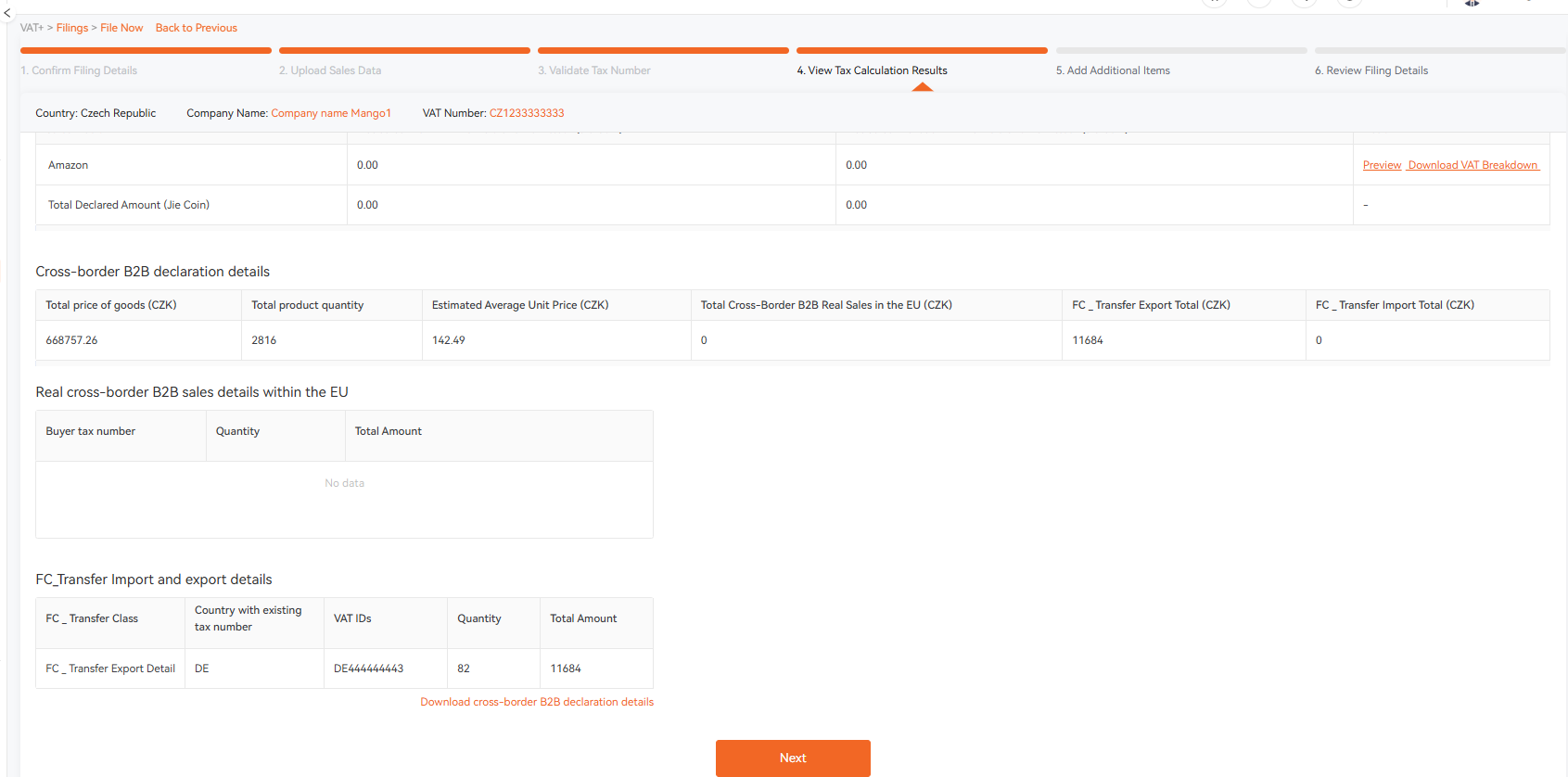
④ View Tax Calculation Results
Click [Next] after verification.
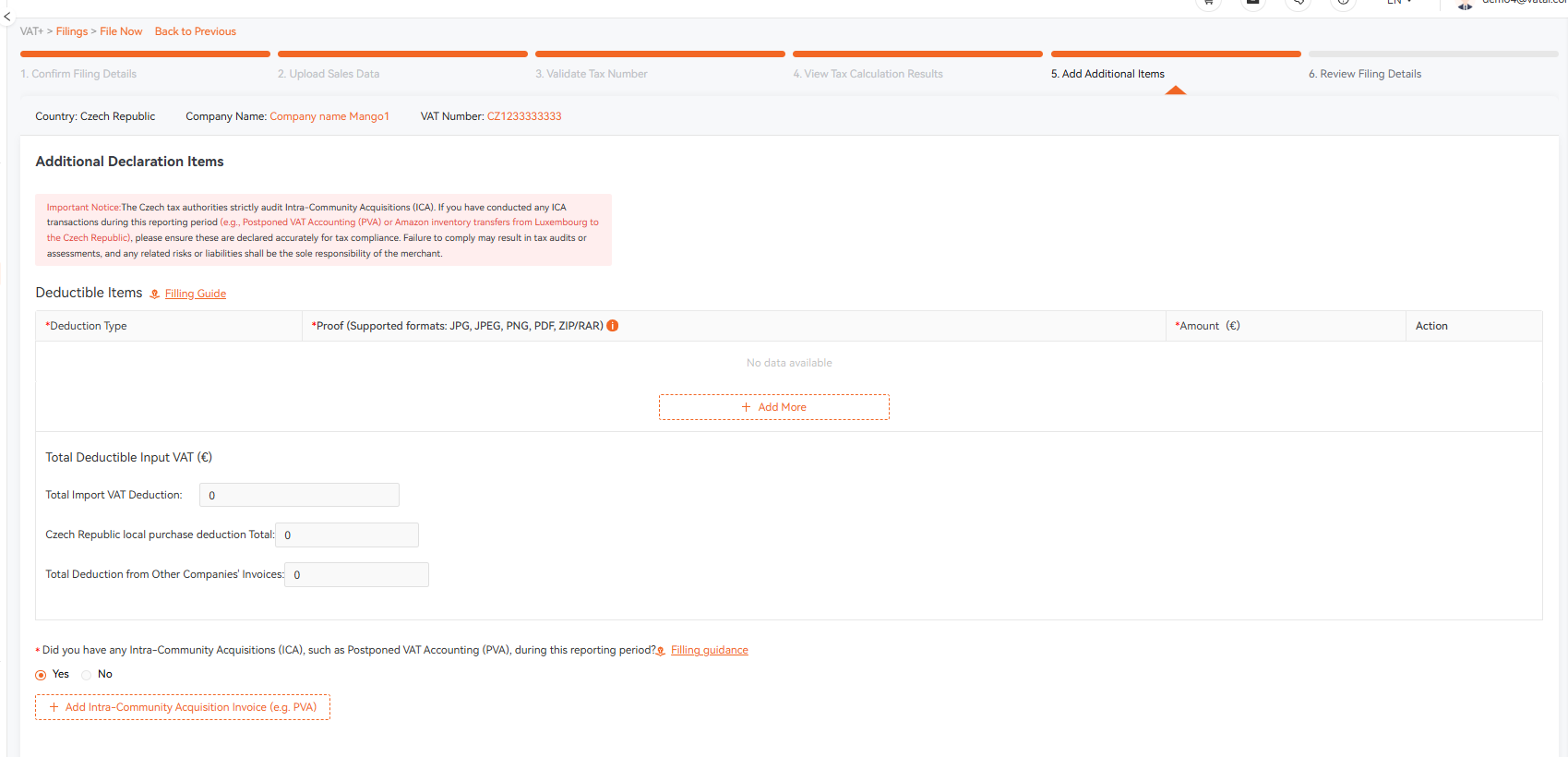
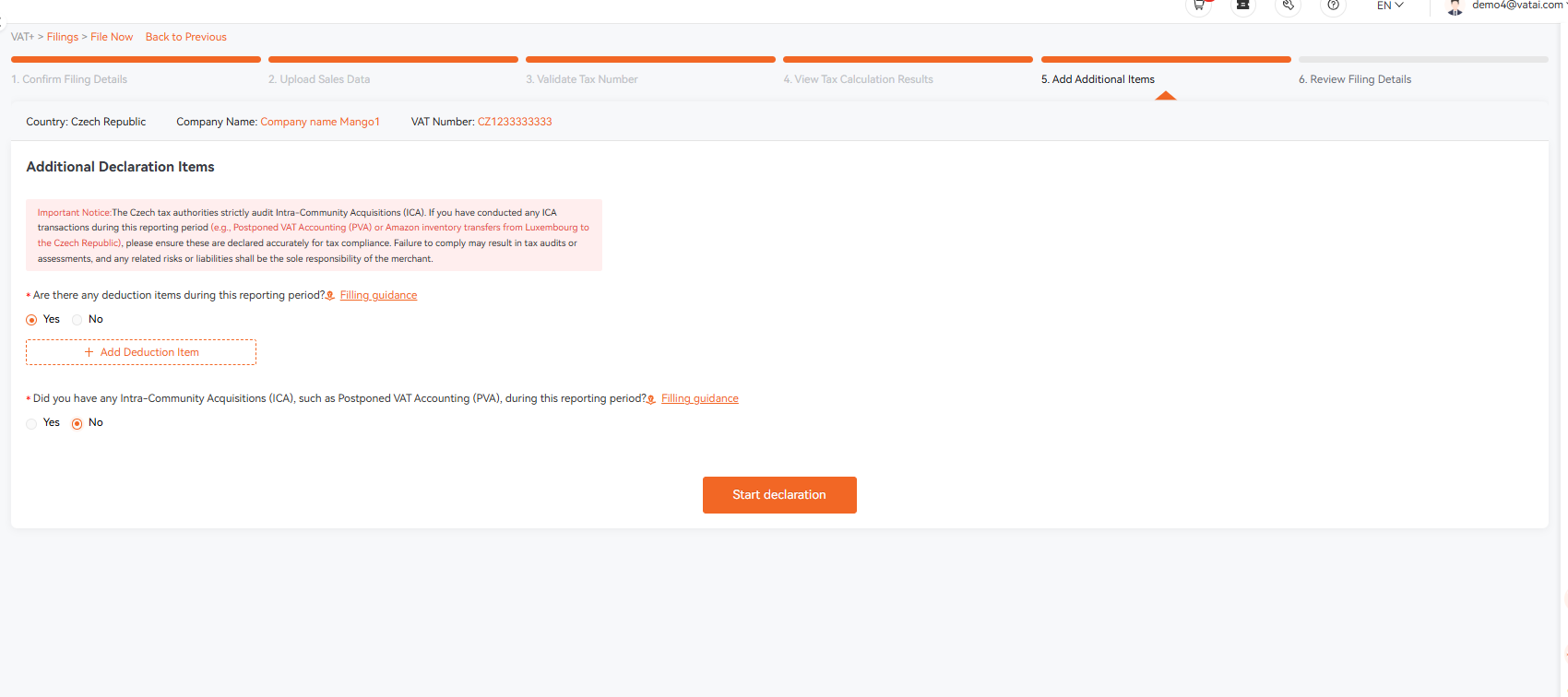
⑤ Add Additional Items
• Deductions: If applicable, click [Add Deduction Item] and upload supporting documents; if not, select [NO].
• Cross‑border B2B Purchases: If applicable, click [Add Intra‑Community Acquisition Invoice (e.g. PVA)] and fill in the required information; if not, select [NO].
Click [Start declaration] upon completion.
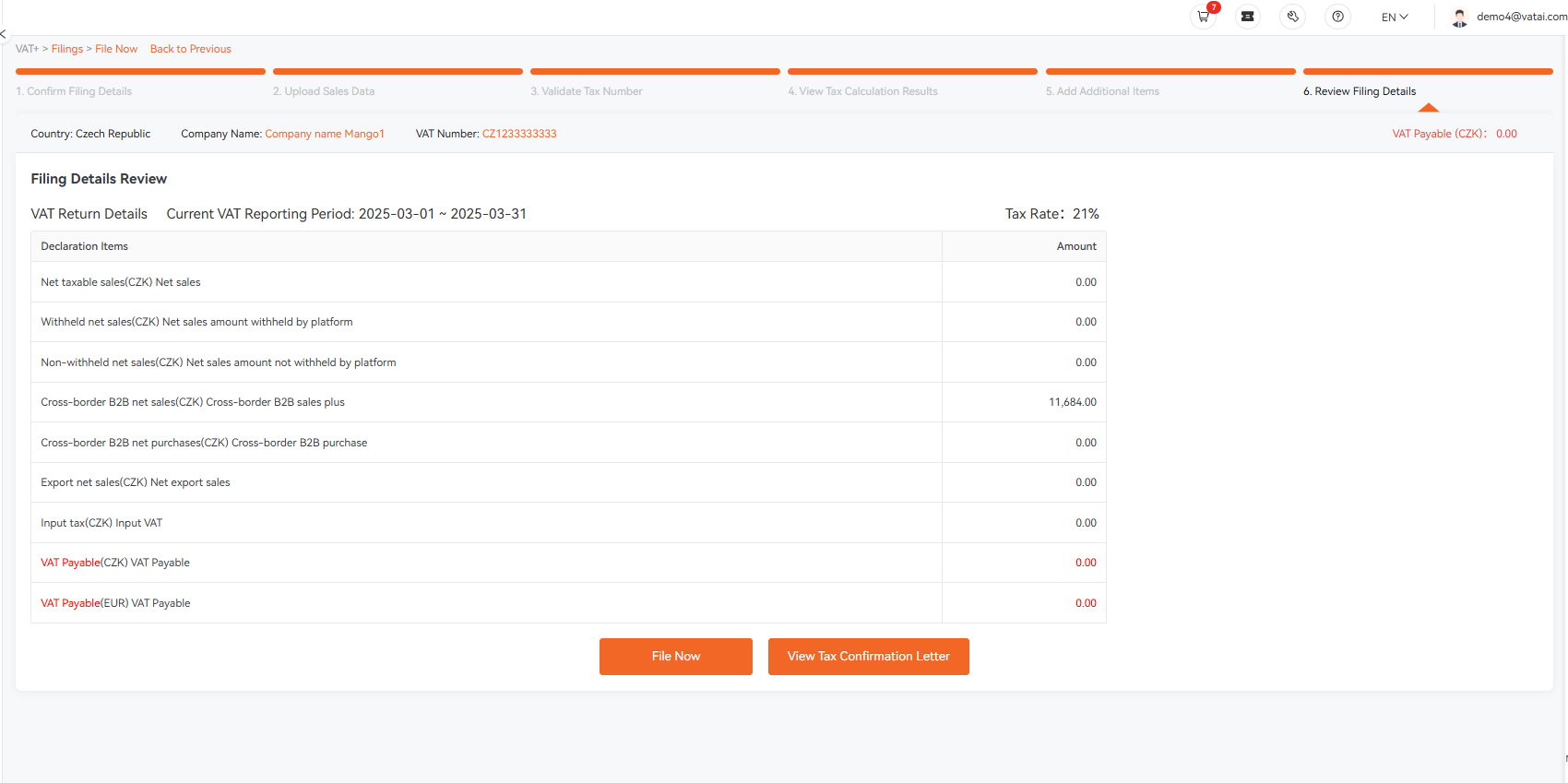
⑥ Review Filing Details
After verifying the data on the [Filing Details Review] page, click [File Now].
⑦ Tax Payment
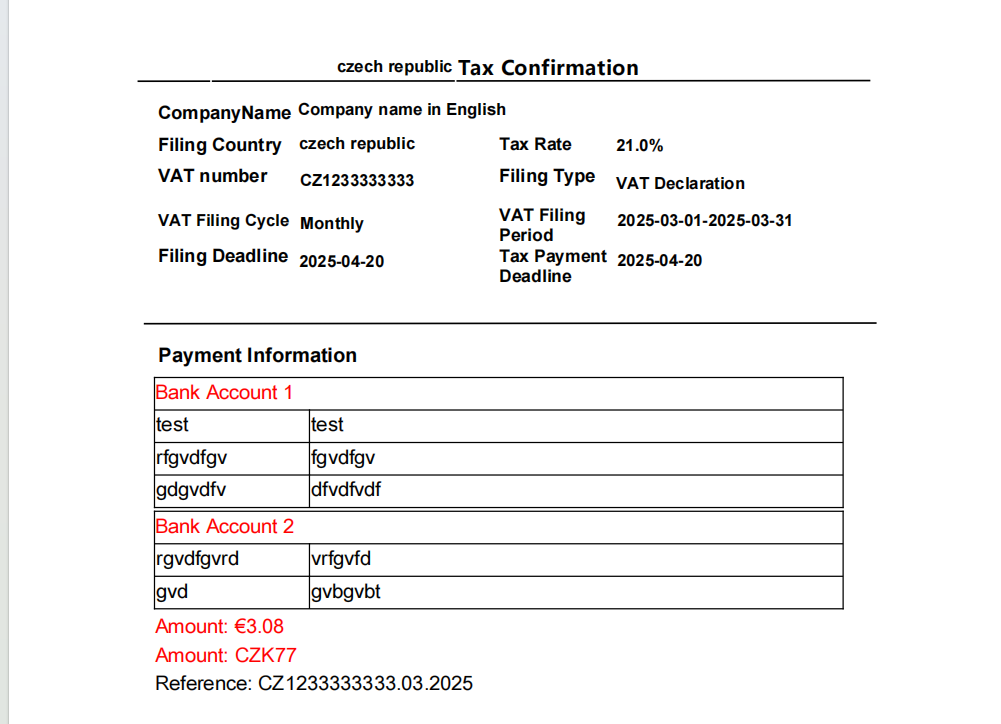
Download the Tax Confirmation Letter and pay the tax accordingly. Be sure to fill in the correct [Reference Number].
⑧ Upload Payment Proof
After tax payment is completed, click [Upload Payment Proof], upload the payment receipt to the system, and then click [Confirm] to finish the filing.